Sign in
- Email and password: on the dashboard sign-in screen. The Storio app also signs in with your email and password.
- Sign in with Google / Sign up with Google: for Gmail and Google Workspace addresses. Google confirms the email, so no confirmation email is sent. If you sign up with Google you also create a password: the Storio app signs in with it.
- Google account with another email (not Gmail or Google Workspace): sign in with your email and password and, in Devices and password › Google account, use Connect Google account (it asks for your password). From then on, Sign in with Google works with that account. You can disconnect it at any time.
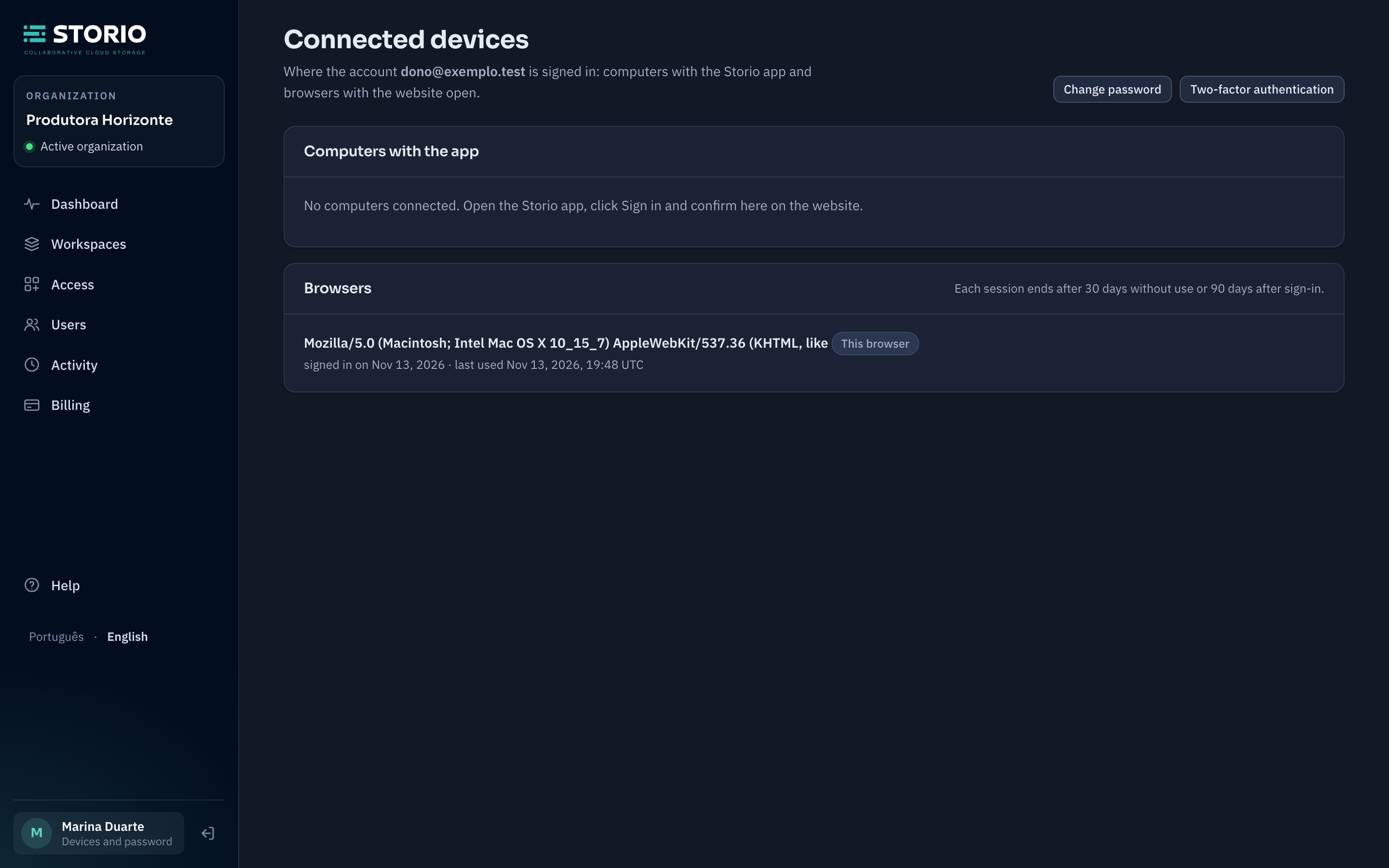
Devices and password
Click your name, at the bottom of the menu, to open Devices and password.
- Connected devices: the computers (Mac or Windows) where the app is signed in with your account. Disconnect signs the app out on that computer; its volumes stop within 1 hour. No files are deleted.
- Browsers: the sessions open on the website. Each one ends after 30 days without use or 90 days after sign-in.
- Change password: asks for your current password. Forgot it? Use Forgot my password on the sign-in screen; the link arrives by email and is valid for 1 hour.
- Two-factor authentication (2FA) (optional): a code from the authenticator app on your phone each time you sign in. When you turn it on, save the 8 recovery codes. Turning it on or off requires your password.