

Account
Your name and email, and each organization you're part of: your role (Owner, Administrator or User), its status (Free trial, Active, Payment pending…) and its workspaces with region, usage, whether they're mounted and your access.
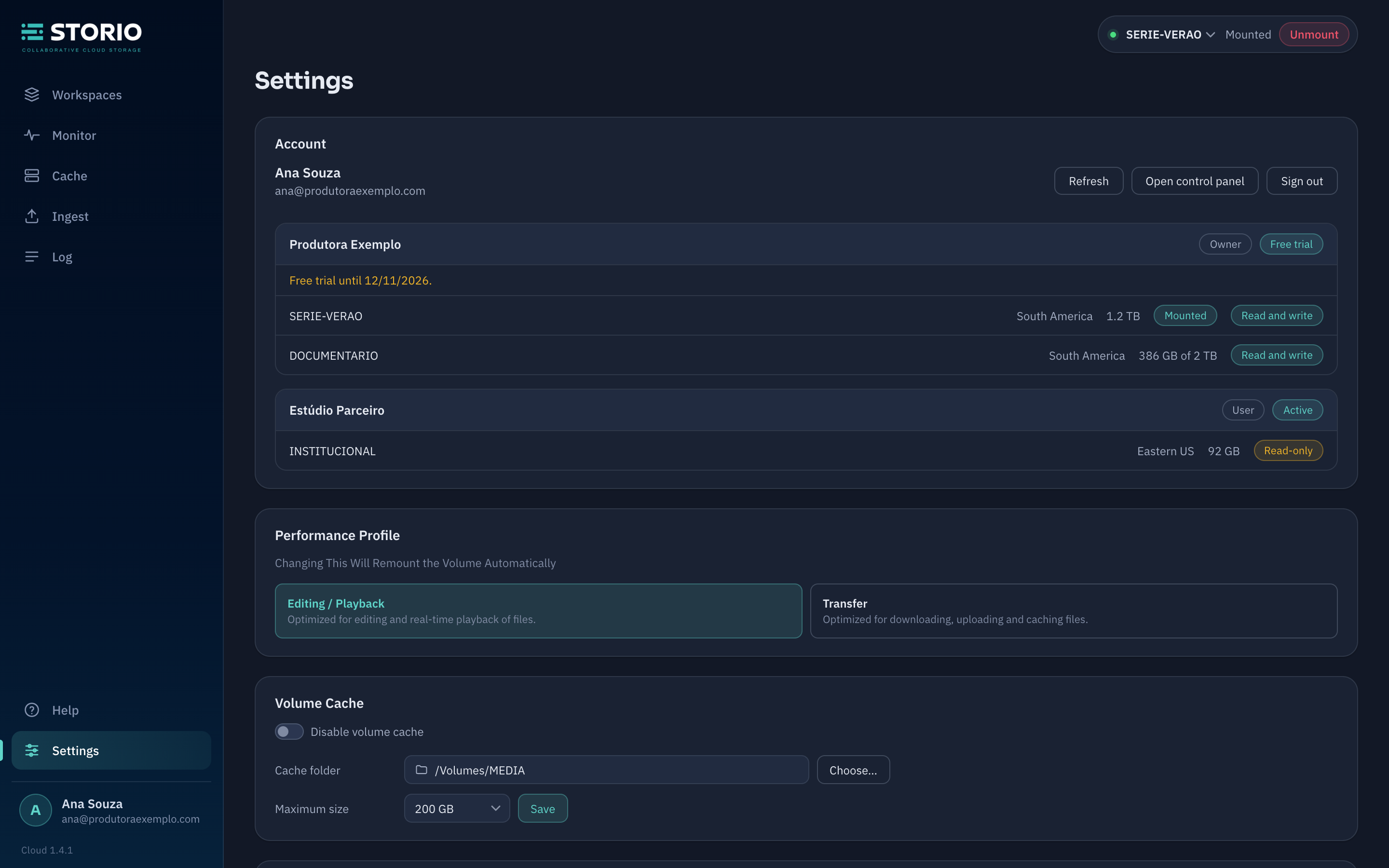
- Refresh checks the dashboard again.
- Open control panel opens the dashboard in your browser.
- Sign out unmounts everything and goes back to the sign-in screen (see Sign in and language).
Performance Profile
- Editing / Playback
- The default. Optimized for editing and playing files in real time.
- Transfer
- Optimized for downloading, uploading and caching many files.
Changing the profile remounts the selected workspace right away (about 15 seconds), so it isn't allowed while a cache download, upload or preparation is running. The other mounted workspaces use the new profile the next time they mount.
Volume Cache
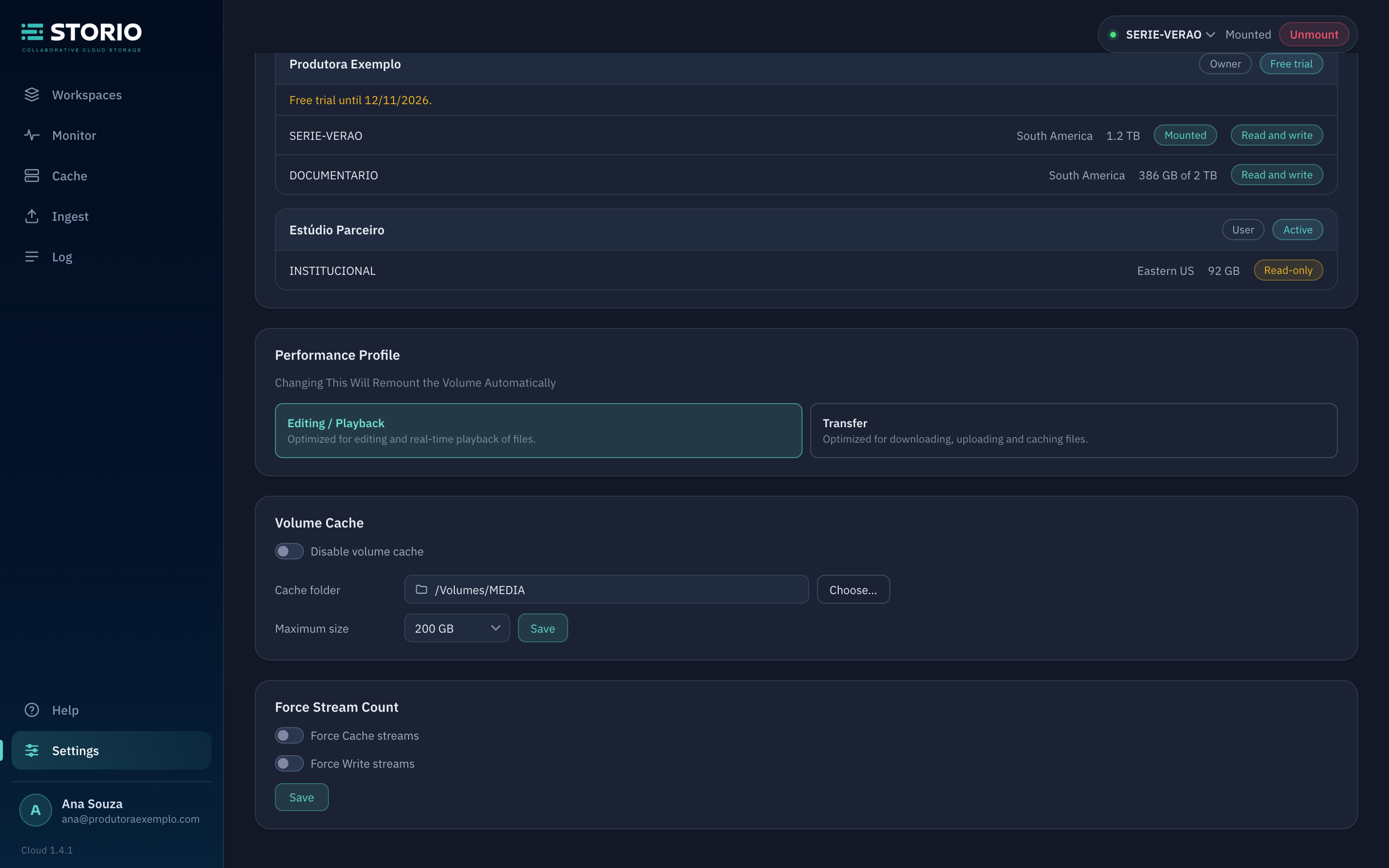
- Disable volume cache
- Reads go straight to the server and nothing is written to disk. The cache buttons stop working. Applies the next time the volume mounts.
- Cache folder
- Where the cache lives:
<folder>/Storio_Cache/Cache. The default is the Documents folder. The disk must be APFS and the folder can't be on a Storio volume. - Maximum size
- From 50 GB to 2 TB (200 GB by default). It never goes over 90% of the disk and is split equally between the mounted workspaces.
After you click Save, the folder and size apply when you quit (⌘Q) and open Storio again.
Force Stream Count
For special cases, usually when Support asks: Force Cache streams (how many files the cache downloads in parallel; 6 by default) and Force Write streams (how many uploads run in parallel through the volume and Ingest). From 1 to 64. Applies after reopening the app.