

The app uses the same account as the dashboard. Sign-in happens in the browser: the app never sees your password.
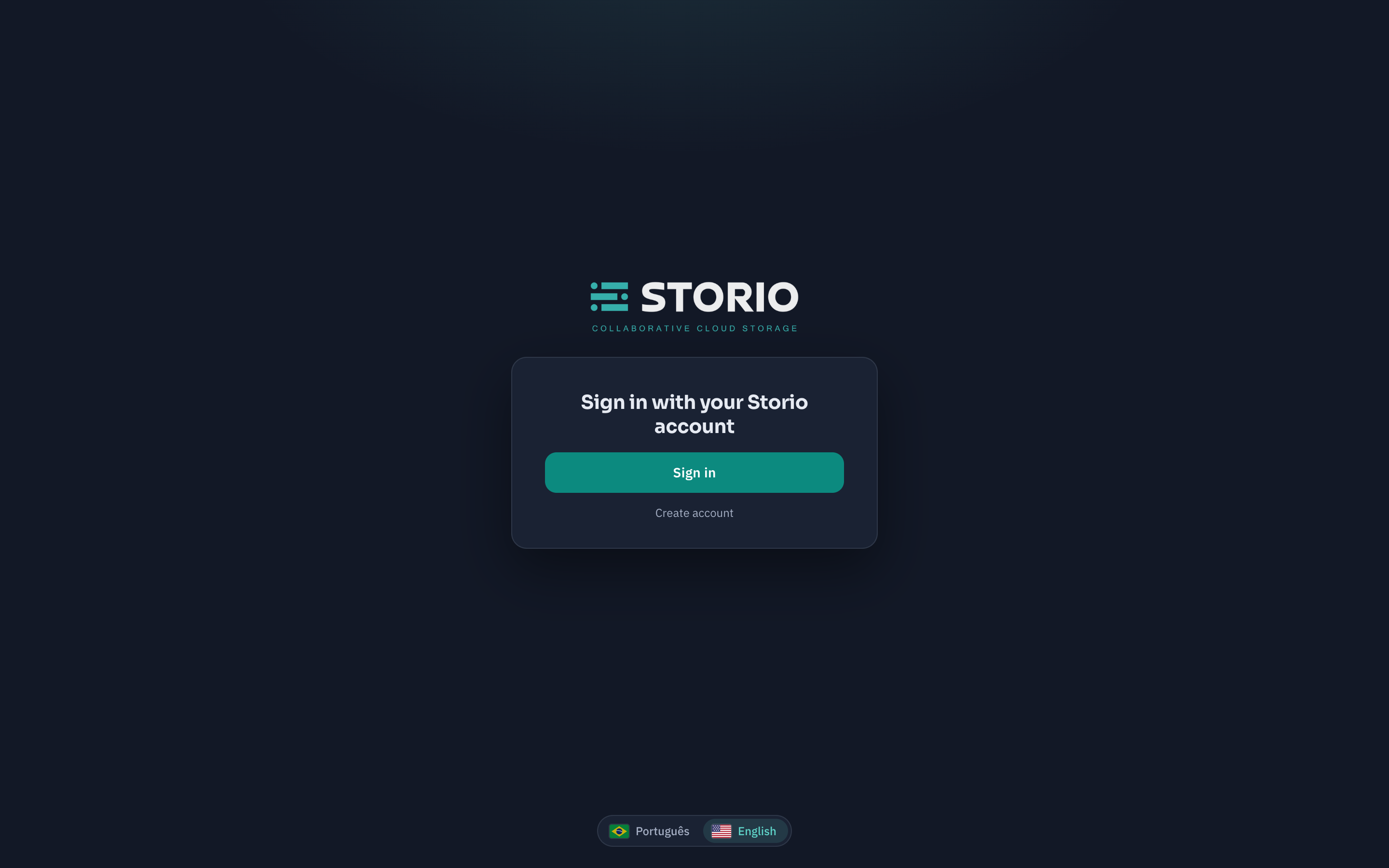
- Click Sign in. Your browser opens the Storio website.
- Sign in with your email and password (and your two-factor code, if you use one) and click Sign in to the app.
- The browser shows a confirmation page. Go back to Storio: the screen updates on its own.
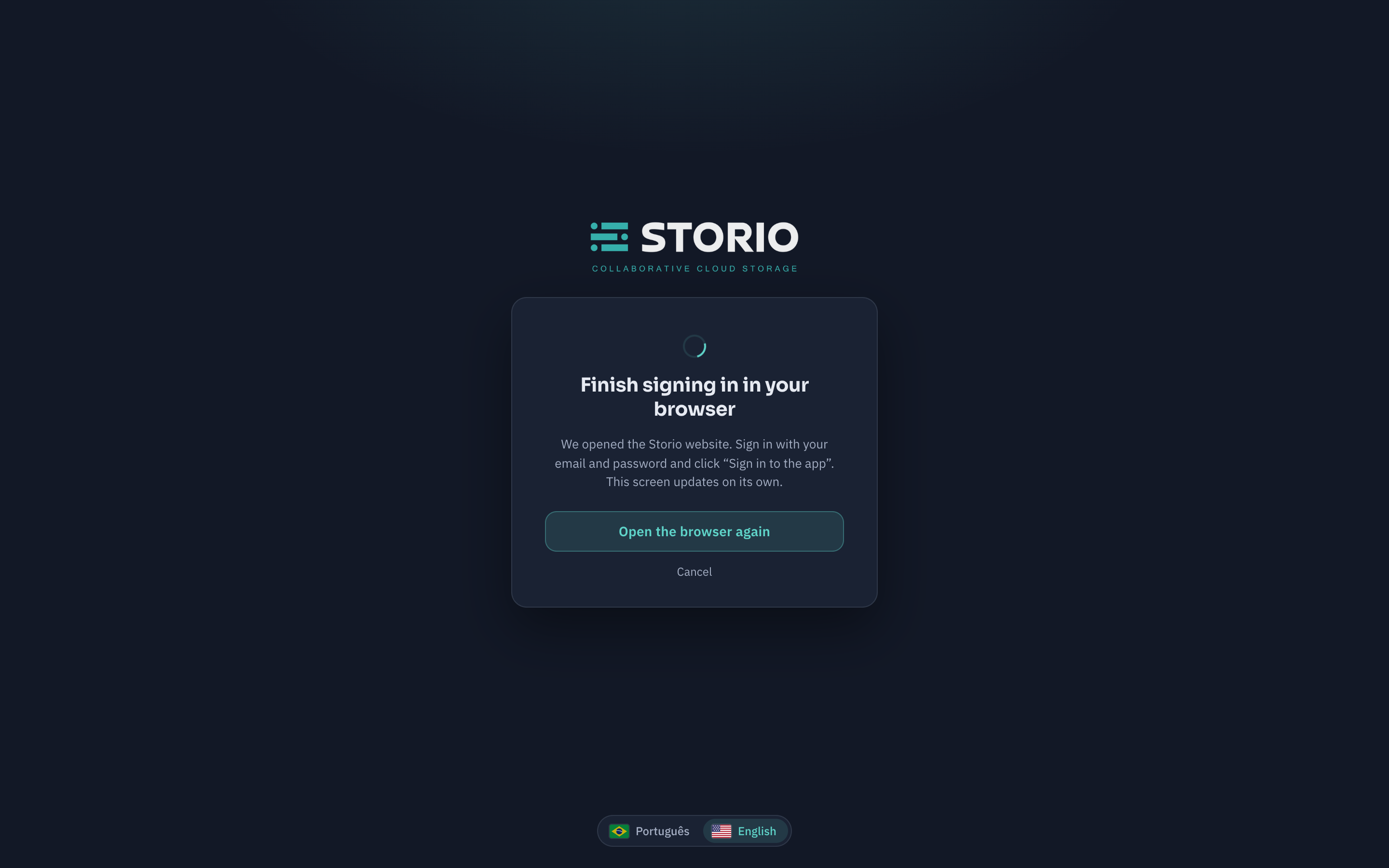
- Open the browser again reopens the sign-in page, if you closed the tab.
- Cancel drops the request. Sign-in must be finished within 5 minutes.
- Create account opens sign-up in the dashboard.
- The session is stored in the Mac's Keychain: next time, the app opens already signed in.
- When it opens, the app shows "Connecting to Storio Cloud" with a progress ring and four steps (start the app, check the account, fetch the workspaces, ready). It usually takes a few seconds.
- Without internet, the app doesn't sign you out: it shows "Connecting..." and the workspaces it already knows keep working.
Language
On the sign-in screen, choose Português or English. The screen reloads in the chosen language, which is remembered next time. Dates and numbers follow the language (1.5 GB and 11/13/2026 in English; 1,5 GB and 13/11/2026 in Portuguese). Messages from the dashboard also arrive in that language.

The language choice is only on the sign-in screen. To change it after signing in, use Settings › Sign out, choose the language and sign in again.
Sign out
In Settings › Account, click Sign out and click again to confirm. Signing out unmounts all of the account's workspaces and forgets the list of what was mounted. If a cache download, upload or preparation is running, the app warns you first.