

Sidebar
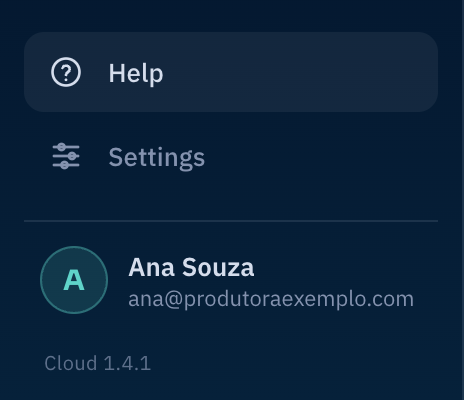
The sidebar shows each page's name. At the bottom are Help, Settings, the name and email of who is signed in, and the app version.
| Button | What it opens |
|---|---|
| Workspaces | The account's workspaces, to mount and unmount (Workspaces). |
| Monitor | Speed, files and transfers of the selected workspace (Monitor). The red badge counts cache downloads and transfers in progress. |
| Cache | What's stored on the Mac, and Project Login (Cache, Project Login). |
| Ingest | Uploading folders from the Mac straight to the workspace (Ingest). The "1" badge shows during an upload. |
| Log | The app's logs (Log). |
| Help (?) | Opens this manual in the browser. |
| Settings | Account, performance profile, cache and streams (Settings). |
Top bar
On the right is the state of the selected workspace: the dot (green = mounted, yellow = mounting, red = error, gray = unmounted), the name and the Unmount button.

- With several workspaces mounted, click the name to choose which one shows in Monitor, Cache, Ingest and Log. The information switches to the other workspace right away, without reloading the screen.
- If work is running in the current workspace (cache, upload, preparation), the first choice only tells you what's running. Choose again within 6 seconds to switch: the work keeps running, it just leaves the screen.
- If files saved to the volume haven't been uploaded yet, Unmount asks for a second click: unmounting now may delay their upload.
- With no workspace mounted, Monitor, Cache and Ingest show a banner with Open Workspaces.