

The Monitor shows the selected workspace: what's uploading and downloading, and its files.
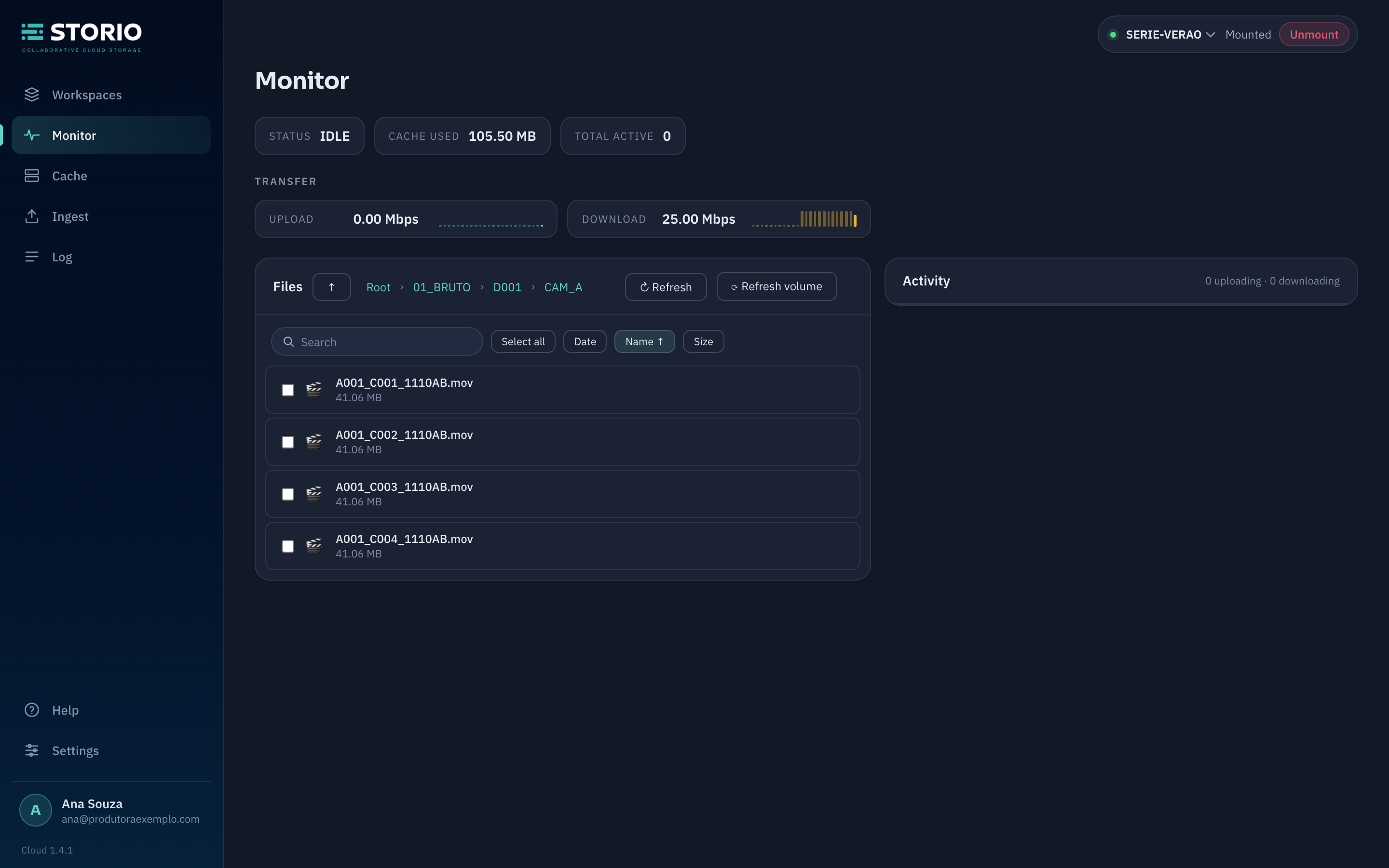
- Status
- ACTIVE with transfers, IDLE when idle, slow… when the service is slow to respond, OFFLINE with no service.
- Cache Used
- Space this workspace's cache takes on the Mac.
- Total Active
- Transfers in progress.
- Upload and Download
- Current speed, in Mbps, with a mini chart of the latest readings.
Files
- Browse folders by double-clicking, through the path (it starts at Root) or with the ↑ arrow.
⌫goes up a folder. - Search looks for the name across the whole workspace, in every subfolder (up to 100 results).
- Sort by Date, Name or Size; click again to reverse. Folders always come first.
- The dot next to the name shows the cache: 100% cached partially cached.
- Hover over an item to see Cache (folder and subfolders) or Cache File, Finder (show in Finder) and ⋮ (details and sharing).
- Drag an item to Finder or to your editor: the file from the volume goes, and Storio starts caching it right away.
- ↻ Refresh reads the folder from the server again. ⟳ Refresh volume makes Finder and your editors see right now what someone else just uploaded, without waiting (normally the volume updates on its own within 5 minutes). It doesn't delete the cache.
Check the boxes (or Select all) and click ⬇ Cache selected to download everything checked, with its subfolders.
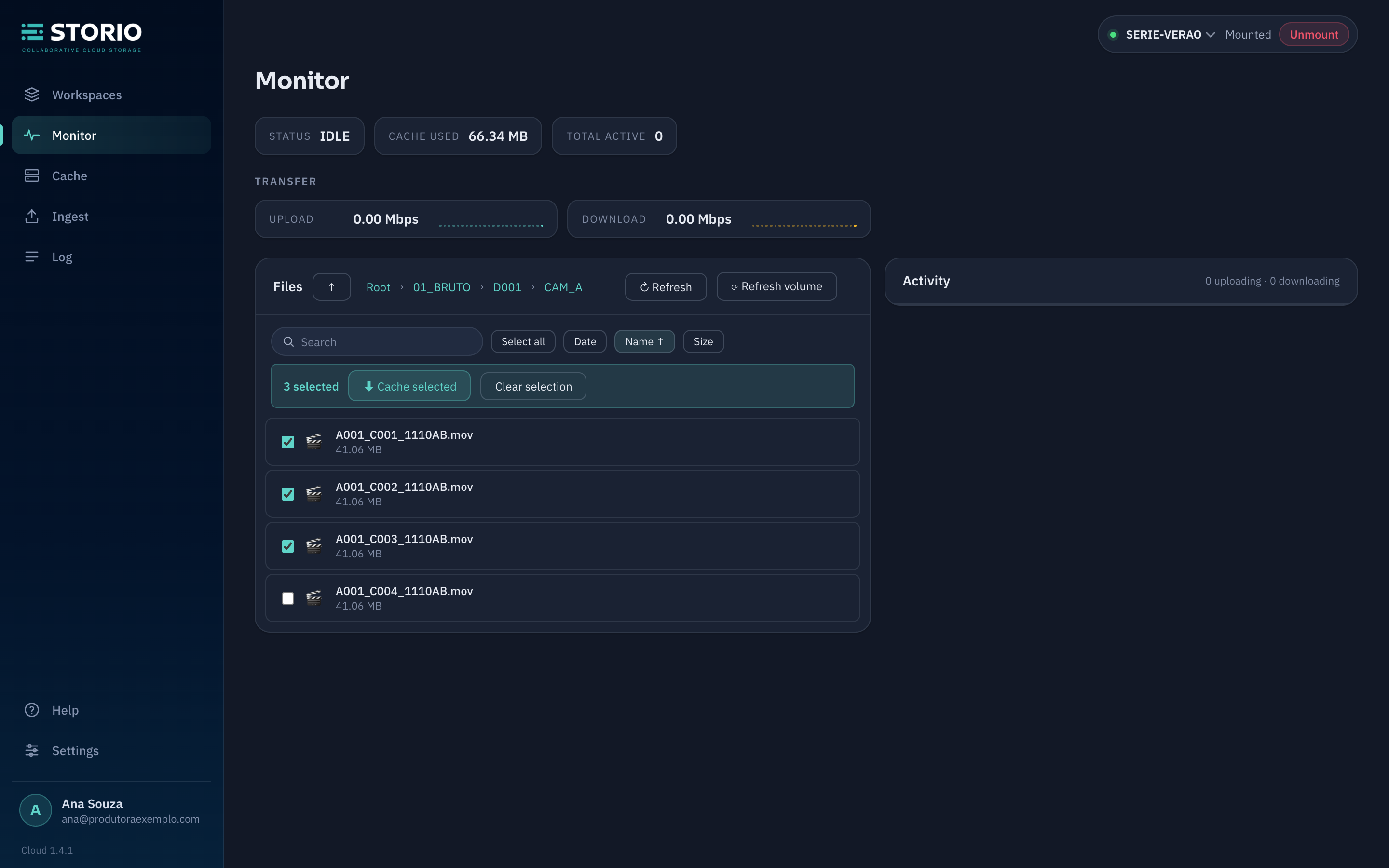
Activity and Cache in Progress
- Activity lists each file uploading (↑) or downloading (↓), with progress and speed. At the top, "↑ x/y uploaded" follows the upload queue.
- Files saved or copied to the volume from Finder or an editor start uploading about 10 seconds later. Until they finish, they count as "not uploaded yet".
- Cache in Progress shows at the bottom of the page while cache downloads run, with files, bytes, speed and time left. Each row's ✕ cancels that download; ✕ Cancel all cancels all of them (both ask for confirmation). Up to 3 cache downloads run at the same time.
File details
The ⋮ button opens the name, type, size, date, path and, for videos, File performance: Direct Playback when the connection can keep up (or the file is already cached) or Cache Recommended. The Share tab, next to it, creates a link for people without Storio (see Share).
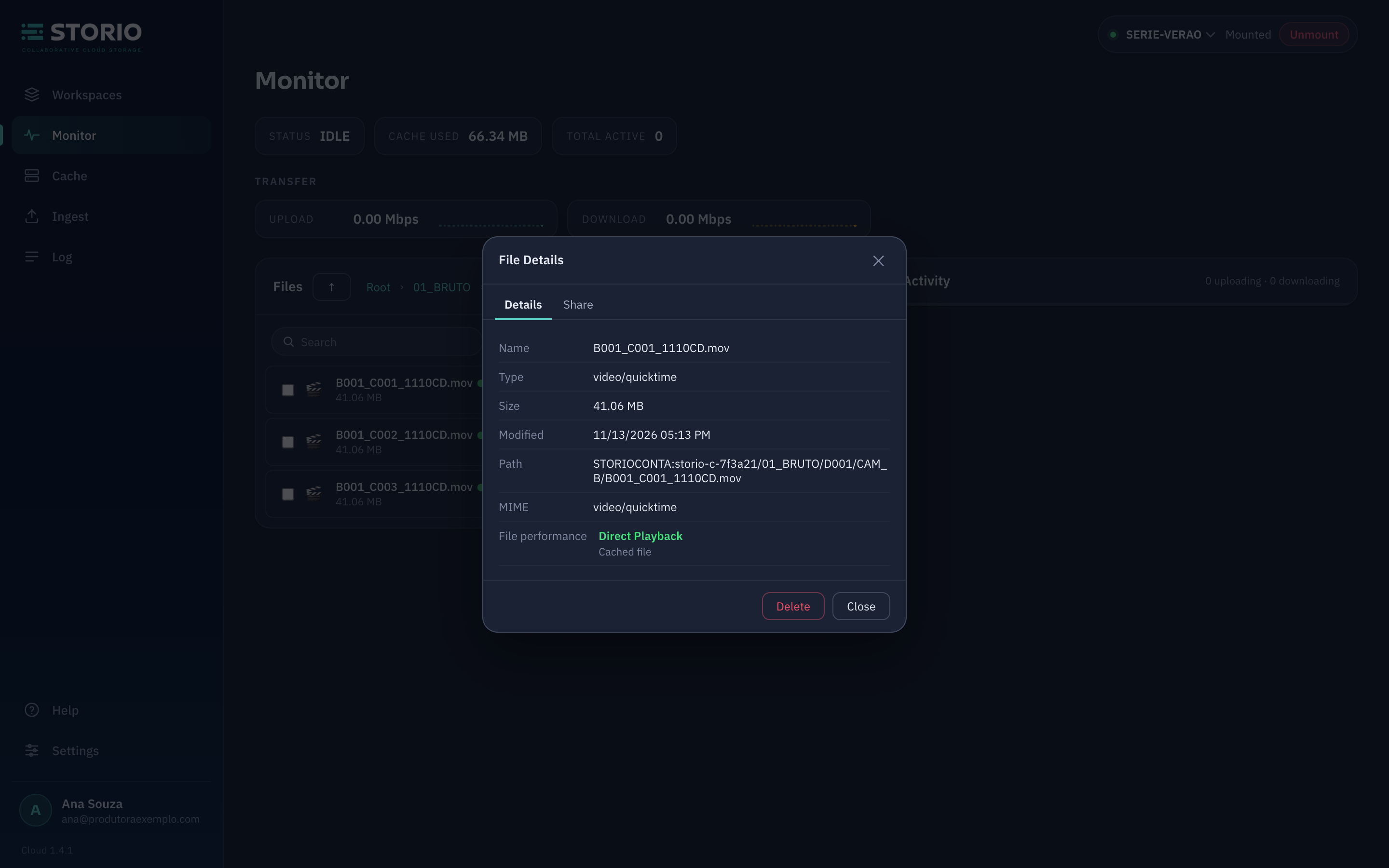
Delete, in the details, deletes the file or folder from the server, for everyone in the workspace, after a confirmation. It isn't just the cache and it can't be undone. To free up space on the Mac, use Cache.