

This page lists the workspaces your account can use, from every organization you're part of. Each workspace mounts as a separate volume, at /Volumes/<name>, and several can be mounted at the same time.
At the top of the page are the welcome with your name and organizations, and three numbers: how many workspaces the account has, how many are mounted now and the space used across all of them.
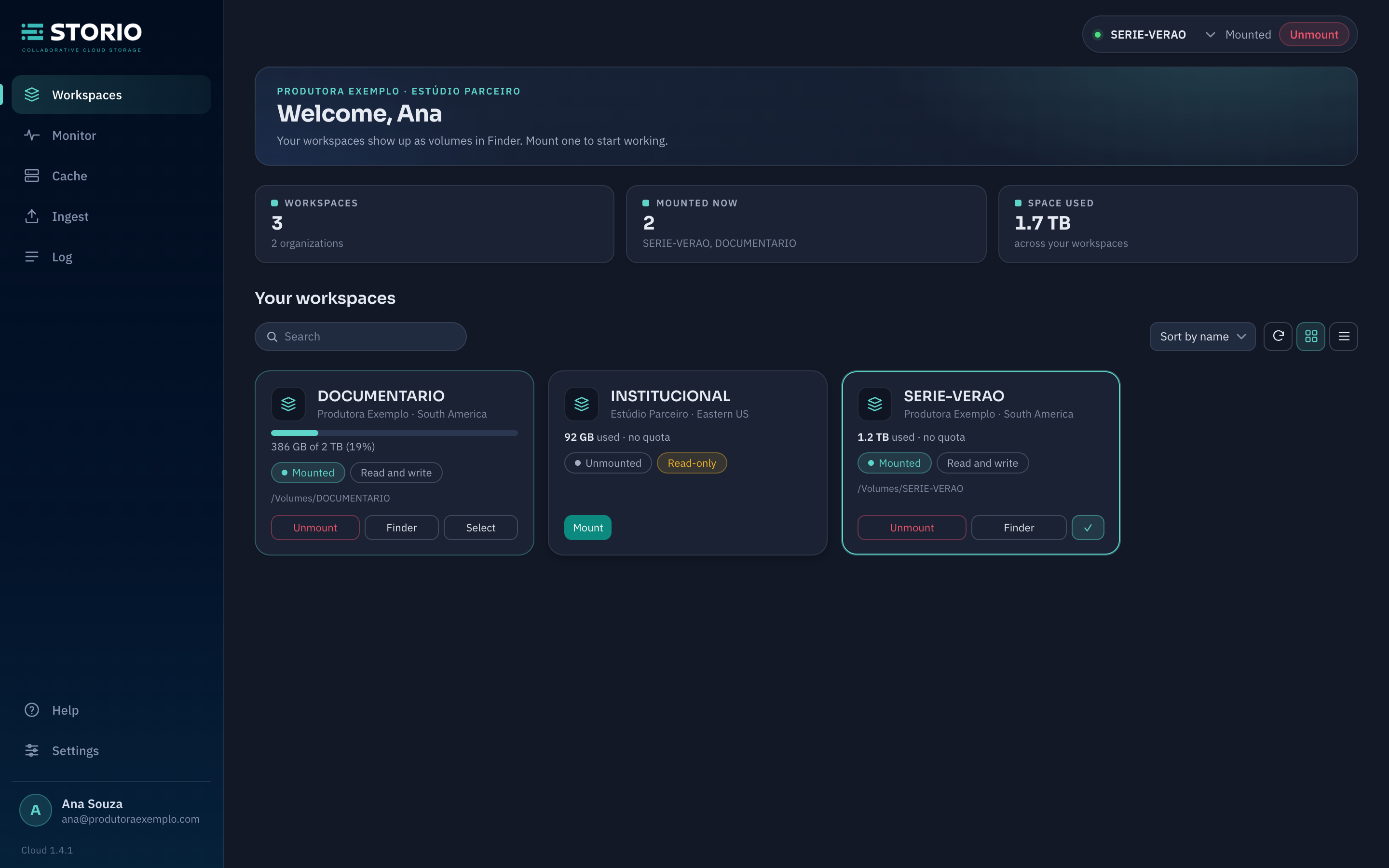
Each workspace's card
- Organization · region.
- Usage: with a quota, "used of quota (%)" and the bar, which turns yellow from 90% and red at 100%. Without a quota, just the space used.
- State: Unmounted, Starting…, Mounting…, Mounted, Unmounting… or Didn't mount.
- Access: Read and write or Read-only. Read-only mounts the volume without allowing writes: Finder opens and copies, but doesn't save.
- When mounted, it shows the volume's path.
Buttons
- Mount
- Mounts the workspace. While mounting, Cancel gives up. If there's an error, Try again shows up.
- Unmount
- Unmounts it. With files not uploaded yet, it asks for a second click within 6 seconds.
- Show in Finder
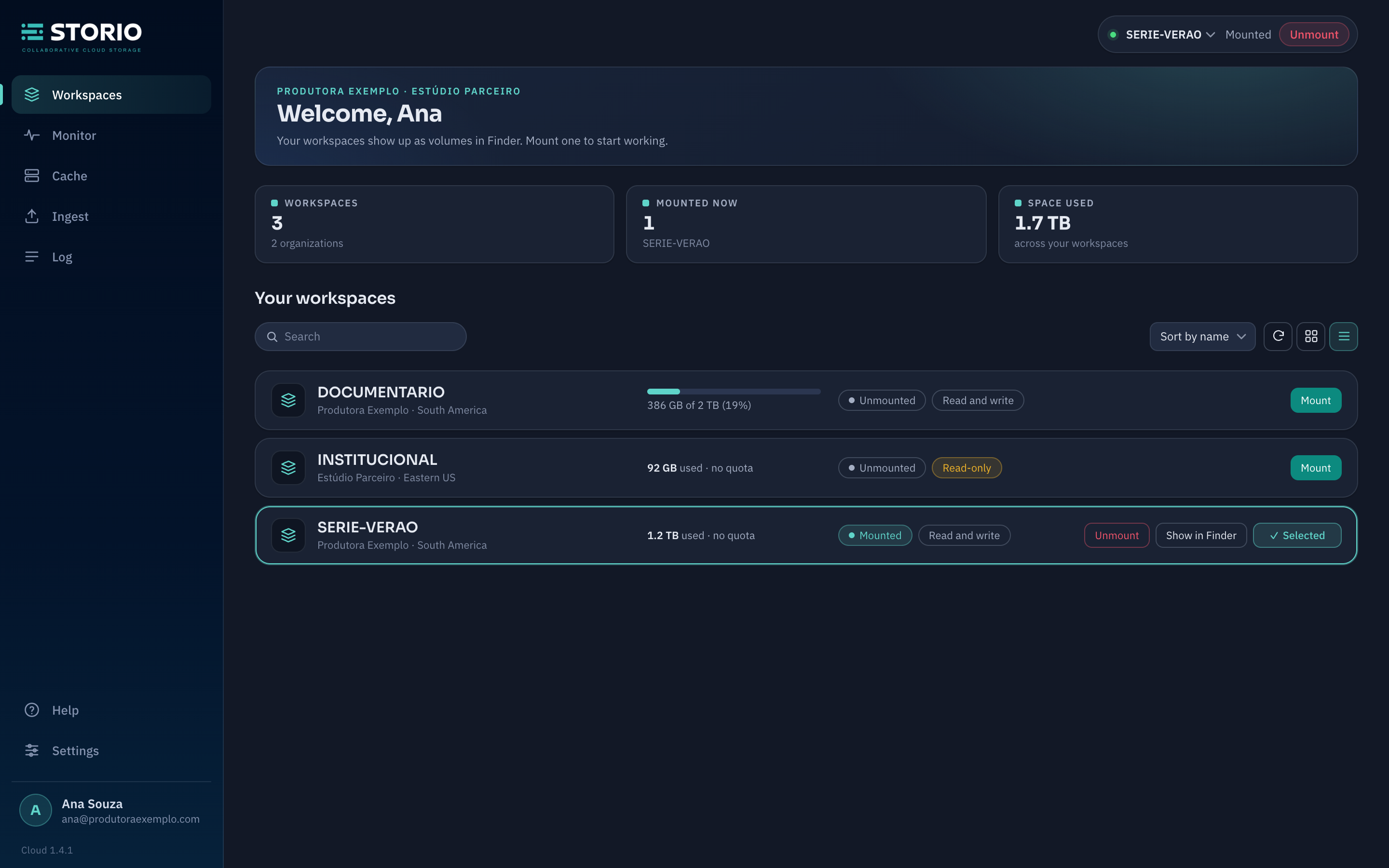
- Opens the volume's folder in Finder. In Grid view the button shows just Finder.
- Select
- Makes Monitor, Cache, Ingest and Log show this workspace. Double-clicking the card also selects it. The selected one shows ✓ Selected (in Grid view, just ✓) and a highlighted border.
Find and organize
- Search filters by workspace or organization name (
Escclears). - Sort by name, newest, oldest or mounted first.
- Choose between Grid and List. The search, sort and view are remembered.
- The ↻ (Refresh) button, next to the sort menu, checks the dashboard again. The list also updates on its own; a workspace you were just given access to shows up within 30 minutes.
What was mounted mounts again on its own when you open the app or sign in again. If a workspace leaves your account while it's mounted, the card tells you: unmount it when you're done.