

Share creates a link so people without Storio can download a file or folder from the workspace in their browser: a client, an outside finishing artist, a broadcaster. They don't need an account.
Create a link
- In the Monitor, hover over the file or folder and click ⋮.
- Open the Share tab.
- Pick the Expires option: 1 day, 7 days (the default) or 30 days. Every link stops on its own within 30 days.
- If you want, type a Password, 4 to 128 characters long. Leave it empty for no password.
- Click Create link. The link shows up under Active links and is already copied: just paste it into your email or message.
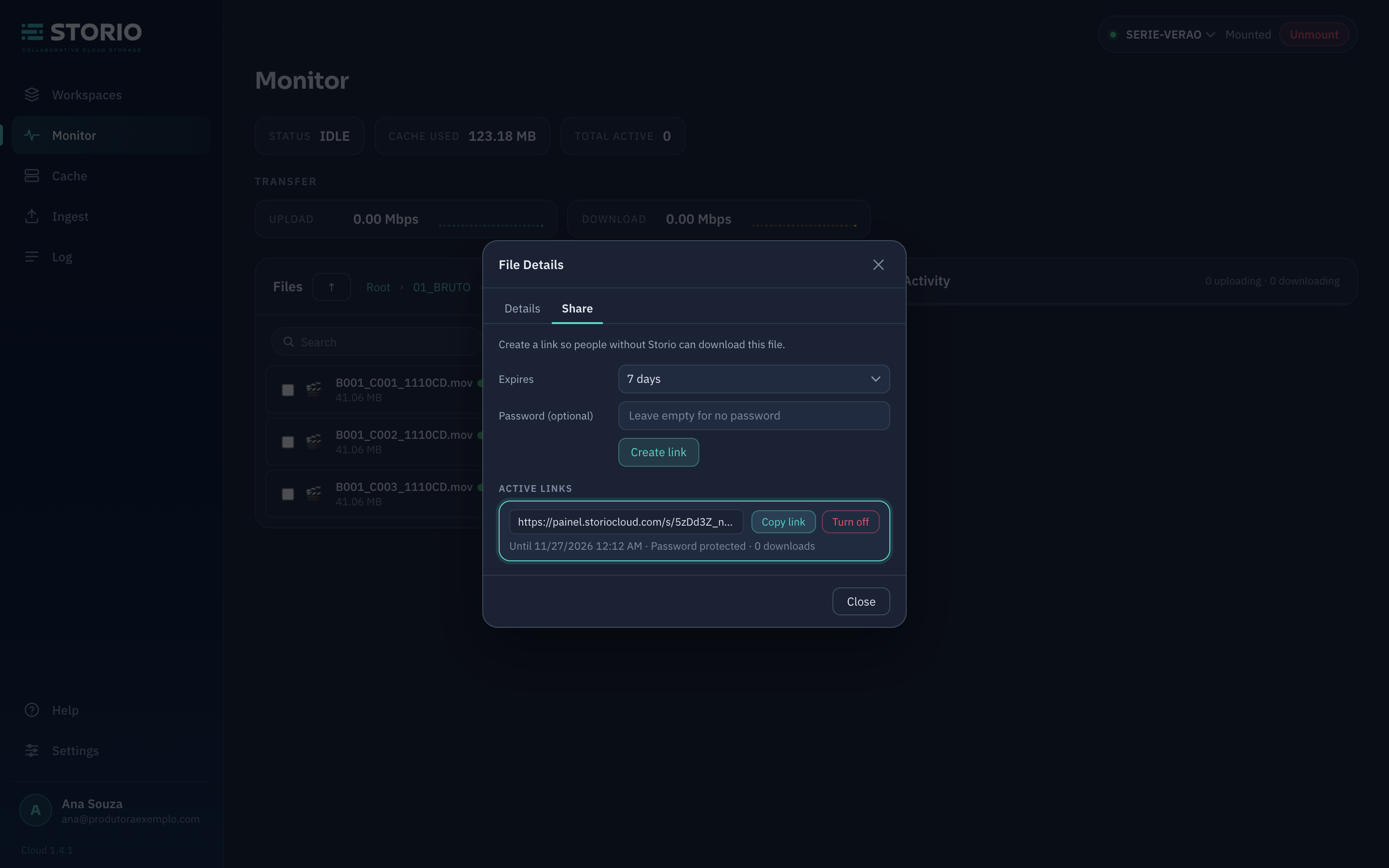
The full address only shows right after you create the link. Copy it right away (the Copy link button does that). After that the link stays in the list, but without the address; if you lose it, create another one.
Active links
- Each link shows when it expires, whether it has a password and how many times it has been downloaded.
- Turn off asks for a second click, on Confirm. The link stops working right away for everyone who got it.
- Anyone with access to the workspace can create links, even with read-only access. Each person sees and turns off the links they created.
- The Owner and the admins see everyone's links, with the name of who created each one, and can turn off any of them. In the panel, the workspace page has a Shared links button with all of the workspace's active links.
What the recipient sees
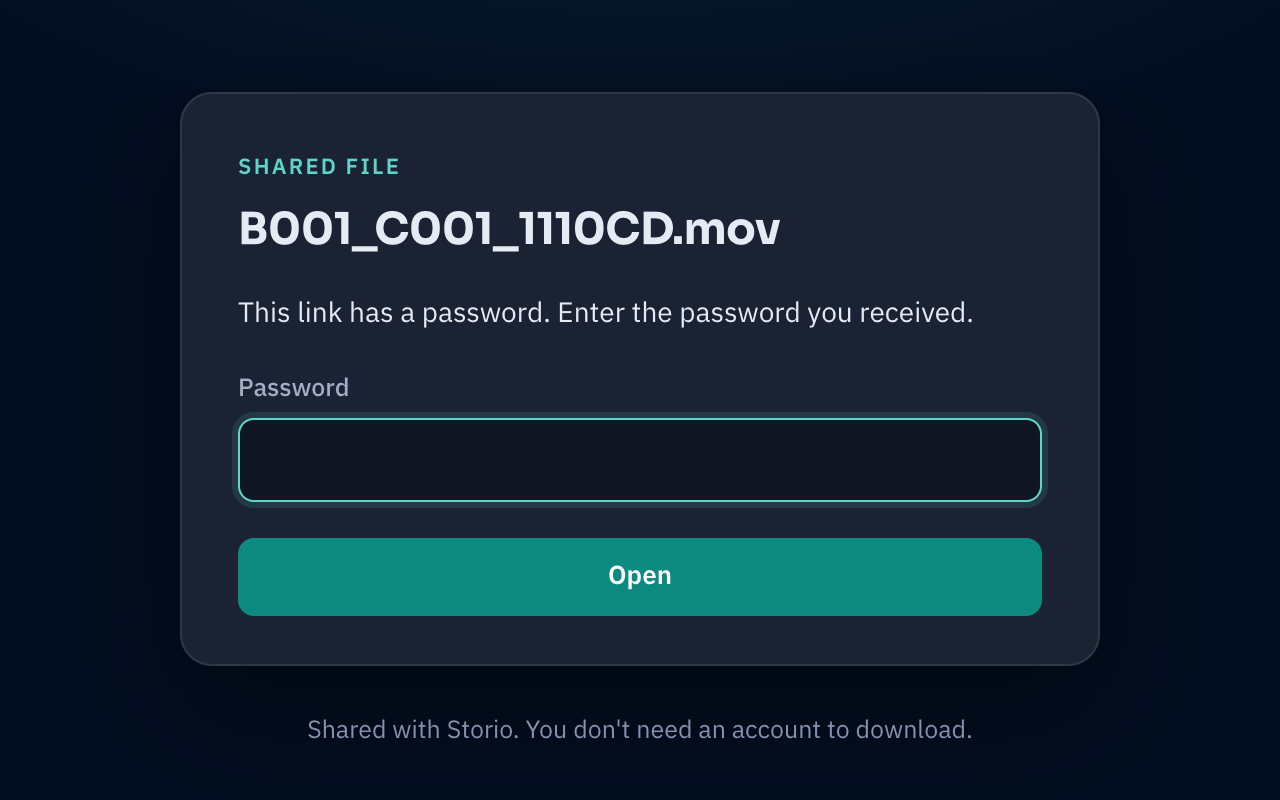
The link opens a Storio page in the browser, in English or Portuguese. If it has a password, that's asked for first. Send the password some other way, not in the same message as the link.
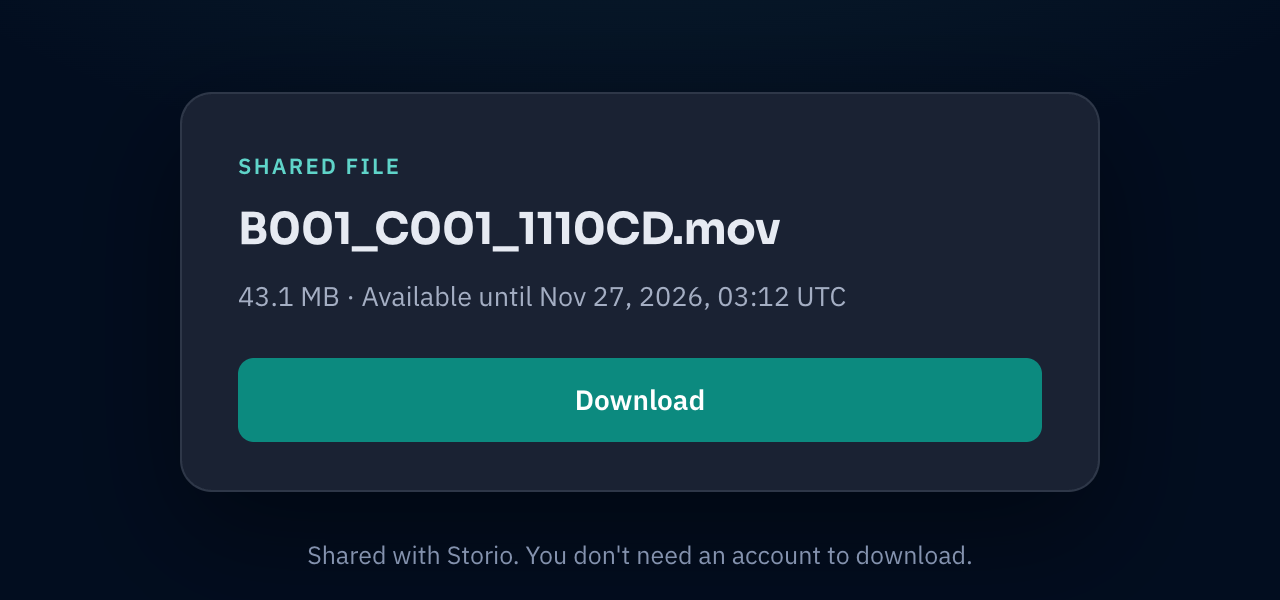
For a file, the page shows the name, the size, when the link expires and the Download button. For a folder, it shows the files and subfolders: the recipient can browse and download each file (there's no .zip of the whole folder).
The link points to the file or folder in the workspace, not to a copy. If the file is replaced, whoever downloads gets the new version; if it's deleted, or the link expires or is turned off, the page shows Link unavailable.