

On the Cache page, the Project Login panel prepares a project that's on the Storio volume so it opens fast: Storio reads the project, finds the media and downloads what you choose before you start editing. Choose the program with the Premiere, Media Composer or DaVinci Resolve buttons.
Premiere Pro
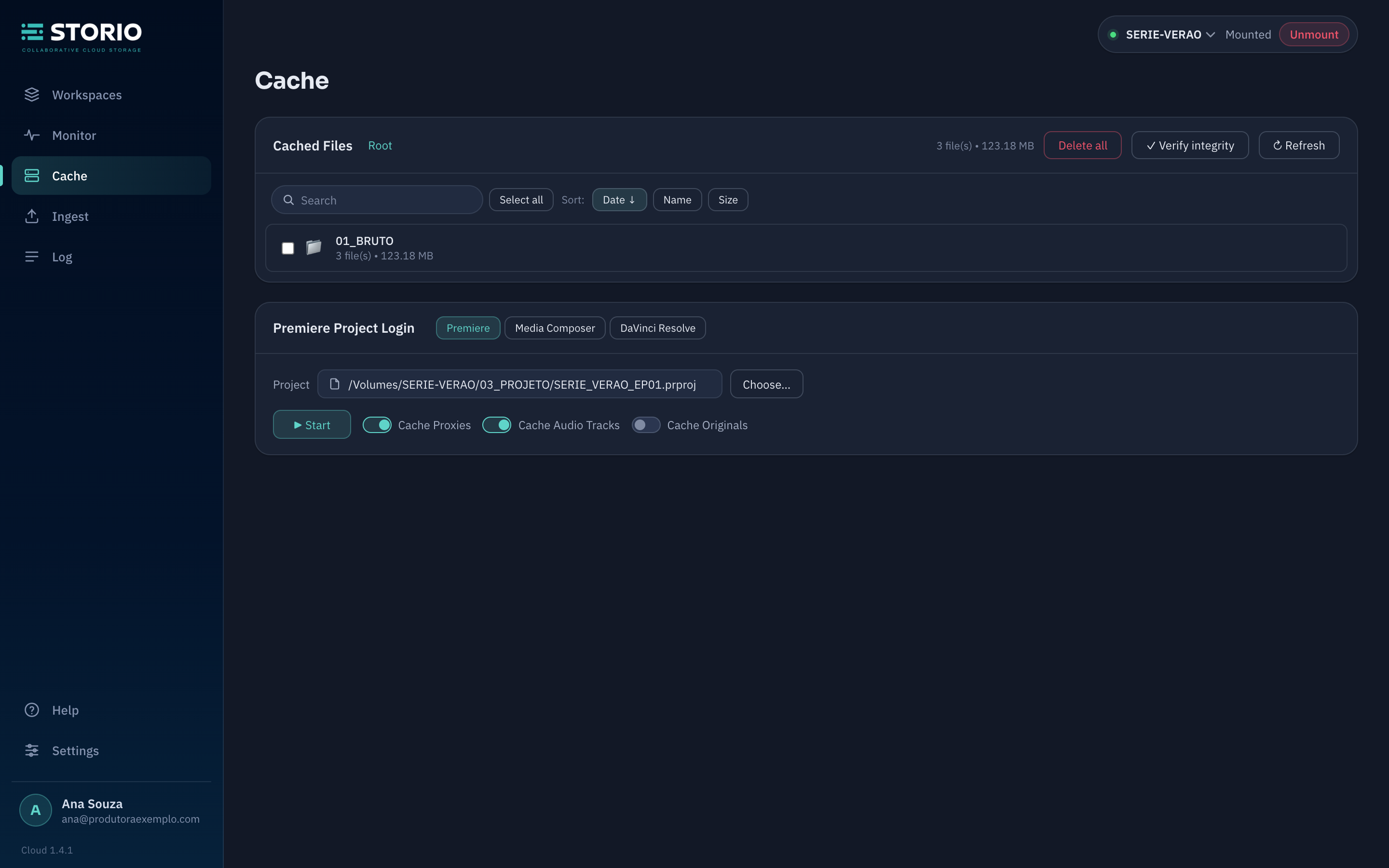
- In Project, click Choose… and pick the
.prprojon the volume (or paste the path). - Check what to download in full: Cache Proxies, Cache Audio Tracks and/or Cache Originals. With Originals, "Download originals only for clips without a proxy" skips what already has a proxy.
- Click ▶ Start (or press
Enterin the field).
Storio relinks project media that's on the volume under another path, reads the start and end of each clip (so Premiere opens fast), downloads what you checked and keeps the project's folders "warm" for 4 hours. The result box shows the phase, progress, time left and the counts (media on Storio, outside the volume, proxies, audio, originals). A yellow warning shows if the total is larger than the cache size or the free space.
When it's done, use ▶ Open with proxies (the volume is remounted hiding the originals that have a proxy, and Premiere opens using the proxies) or ▶ Open with originals. Premiere must be closed; if the project is open on another machine, Storio tells you who has it.
Media Composer
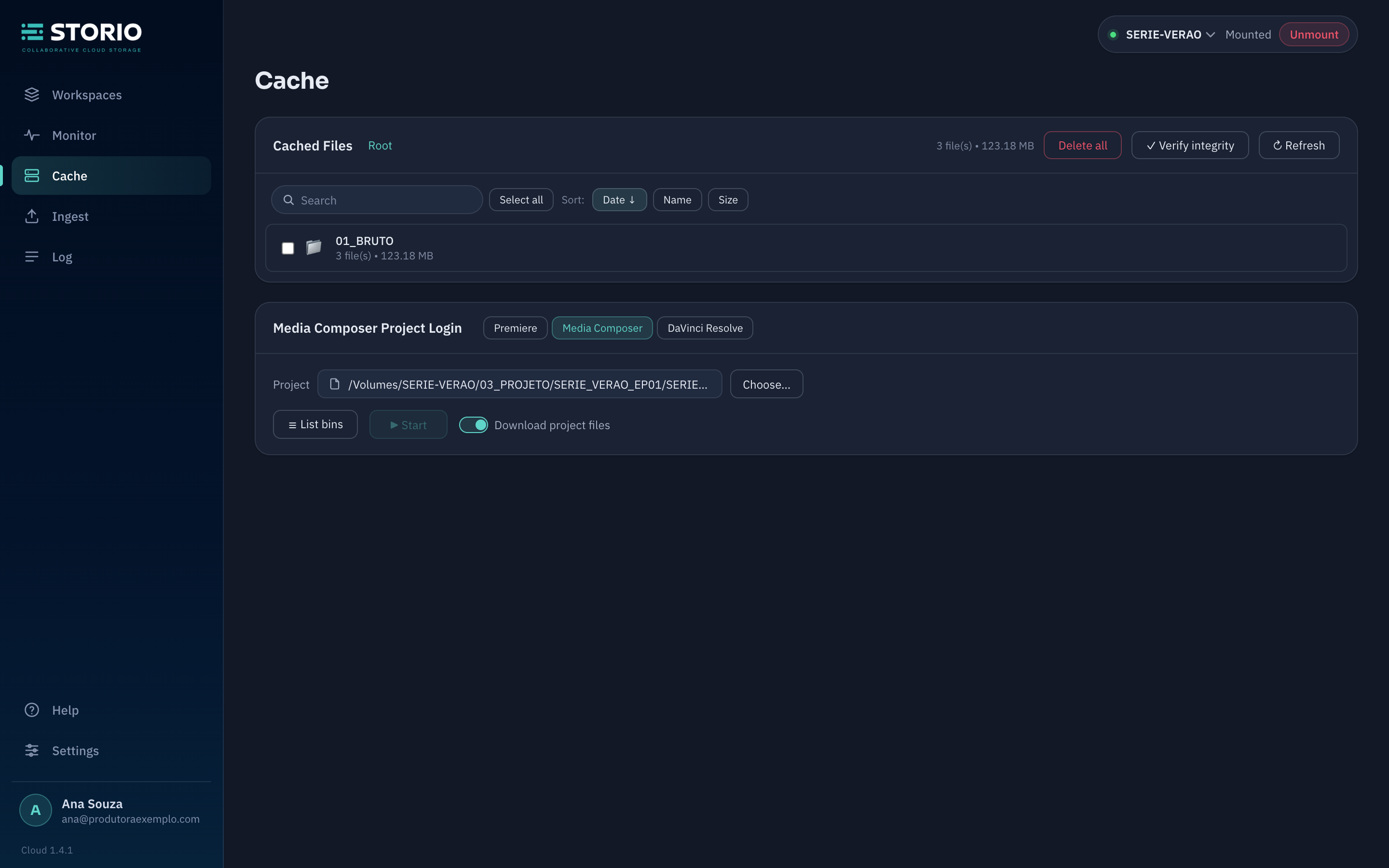
- Choose the project's
.avpand click ☰ List bins. - Check the bins you'll use (Check all / Clear). Each bin shows the linked files, MXF clips, size and how much is already cached. Under Timelines ▸, Cache this timeline downloads only that timeline's MXF files.
- With Download project files on, click ▶ Start. When it's done, ▶ Open in Media Composer.
DaVinci Resolve: render cache
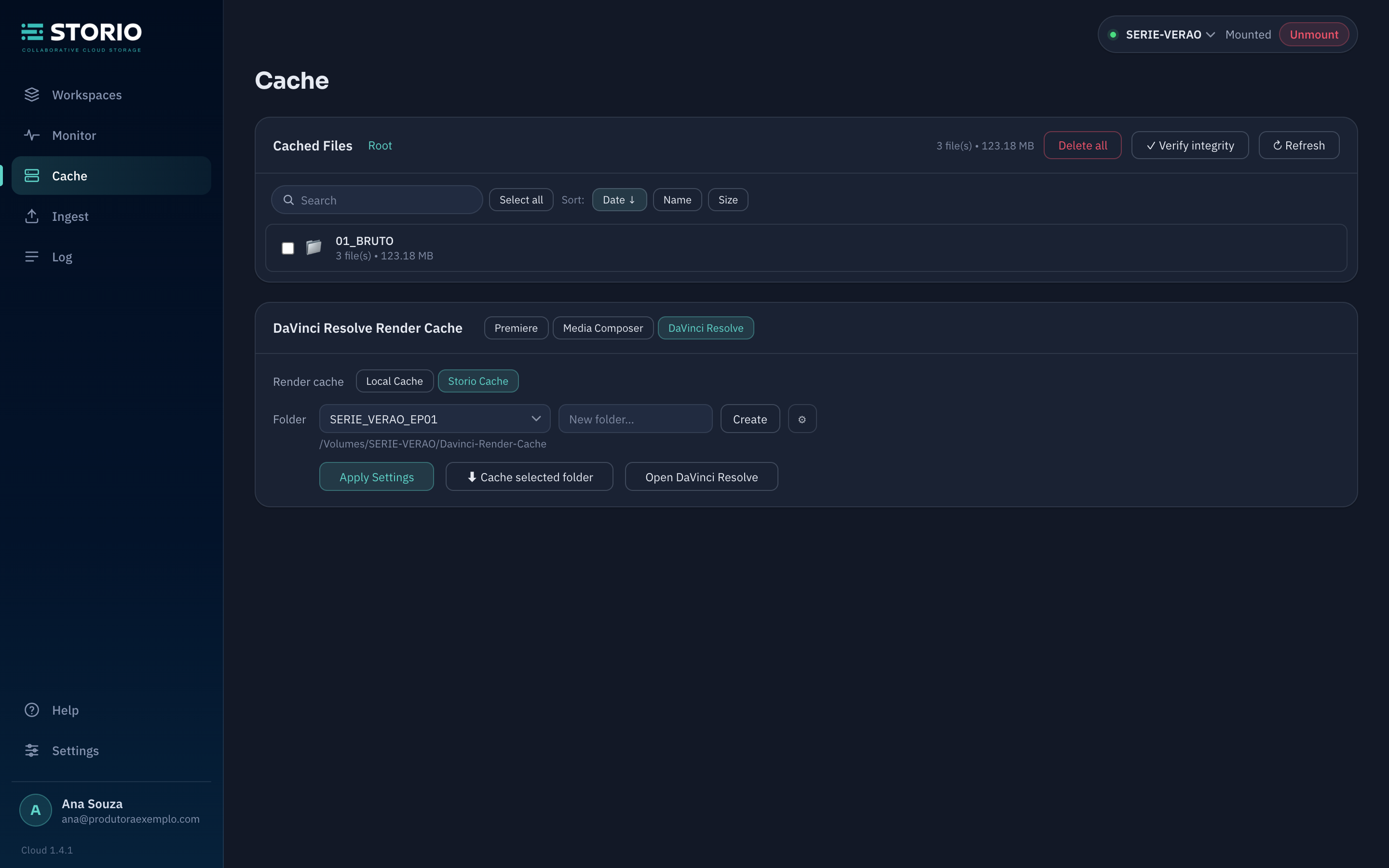
Sets where DaVinci writes the project's render cache:
- Local Cache: a folder on this Mac (it can't be on a Storio volume).
- Storio Cache: a folder inside the volume, so the team shares the renders. Pick the folder in the list or create one with New folder… › Create. The ⚙ button changes the base folder (by default
Davinci-Render-Cacheon the volume). ⬇ Cache selected folder downloads the render cache to the Mac.
Click Apply Settings. With a project open in DaVinci, it applies right away; with no project open, it applies to the next project you open or create (for about 1 hour). Open DaVinci Resolve opens the program.
With the volume cache turned off in Settings, preparation only lists the folders and downloads nothing. If Storio restarts in the middle of a preparation, ▶ Resume shows up. ✕ Cancel stops the preparation at any time.