

| Role | What they can do |
|---|---|
| Owner | The person who created the organization. Can do everything, including adding the card and subscribing. Can't be removed. |
| Administrator | Uses all workspaces and manages the dashboard: workspaces, users and access. Sees Billing only if the owner allows it. |
| User | Uses only the app, in the workspaces they have access to. Can't open the dashboard. |
Invite
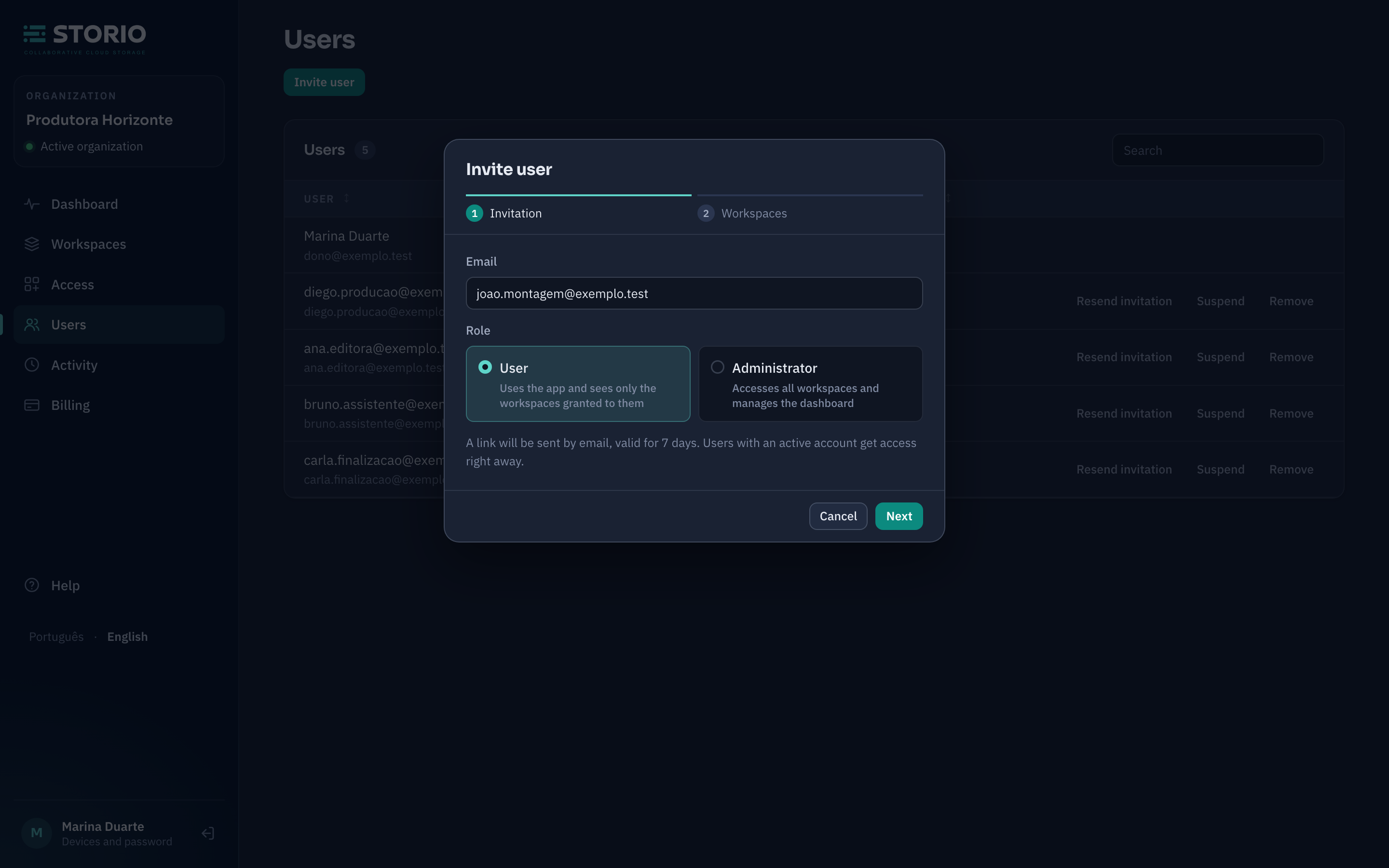
- Click Invite user. First you'll see the notice about the cost of additional users; click I understand.
- Enter the email and choose the role.
- For the User role, check the workspaces with Read or Read & write.
- Click Send invitation. The person gets a link by email, valid for 7 days. People who already have a Storio account get in directly.
Managing people
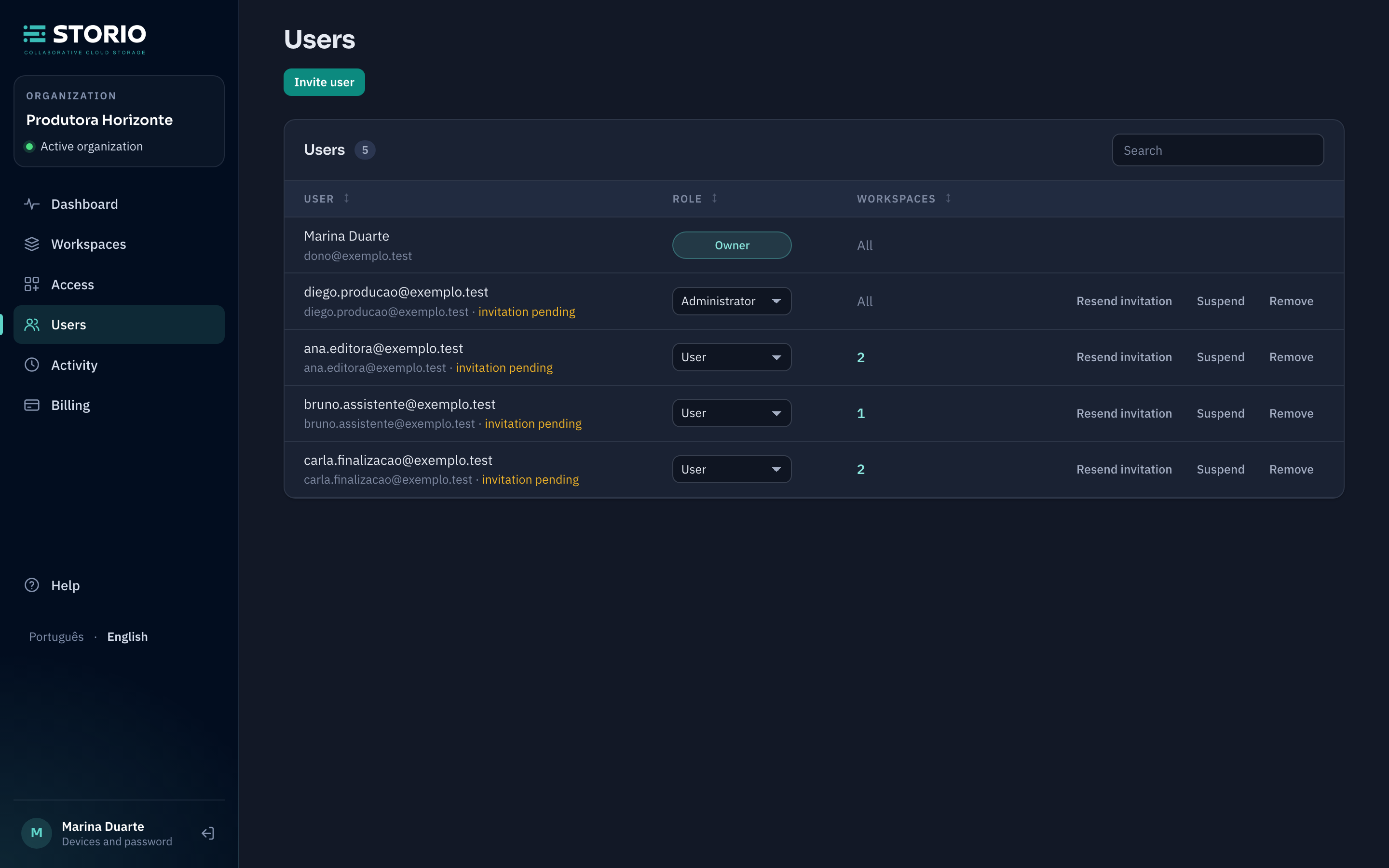
- Resend invitation: sends the link again to someone who hasn't accepted yet.
- Role: change it in the row's menu (User or Administrator).
- Workspaces: click the number in the column to see and change the person's access.
- Suspend: pauses access to all workspaces (in the app, within 1 hour) and keeps the role and access. Reactivate restores everything.
- Remove: removes the person from the organization and from all workspaces.
- Enable AI / Turn off AI: turns the AI on or off for the person. When it's off, the AI disappears from their menu in the dashboard and in the app.
- Allow access to "Billing" (owner only): lets an administrator see and use the Billing page.
Only active users count toward charges: people who accepted the invitation and aren't suspended. Pending invitations aren't charged. See the Pricing policy.