

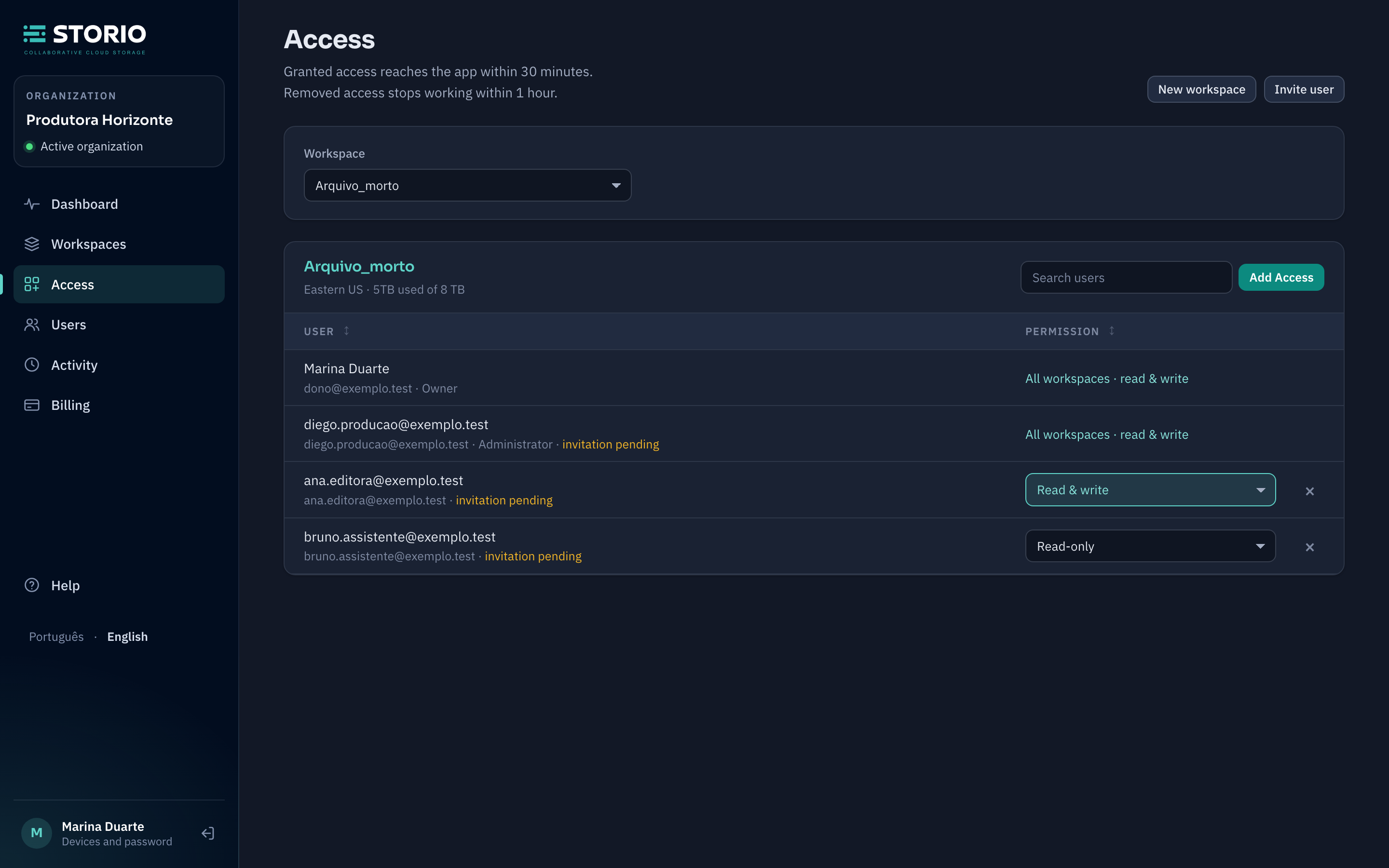
This is where you decide who uses each workspace. Choose the workspace in the box at the top to see who has access to it.
- Read-only: the person can open and copy files, but can't save or delete.
- Read & write: the person can also save, change and delete.
- To change it, choose the new permission in the row's menu. To remove access, click the × at the end of the row.
- Owners and administrators always have read & write access to all workspaces.
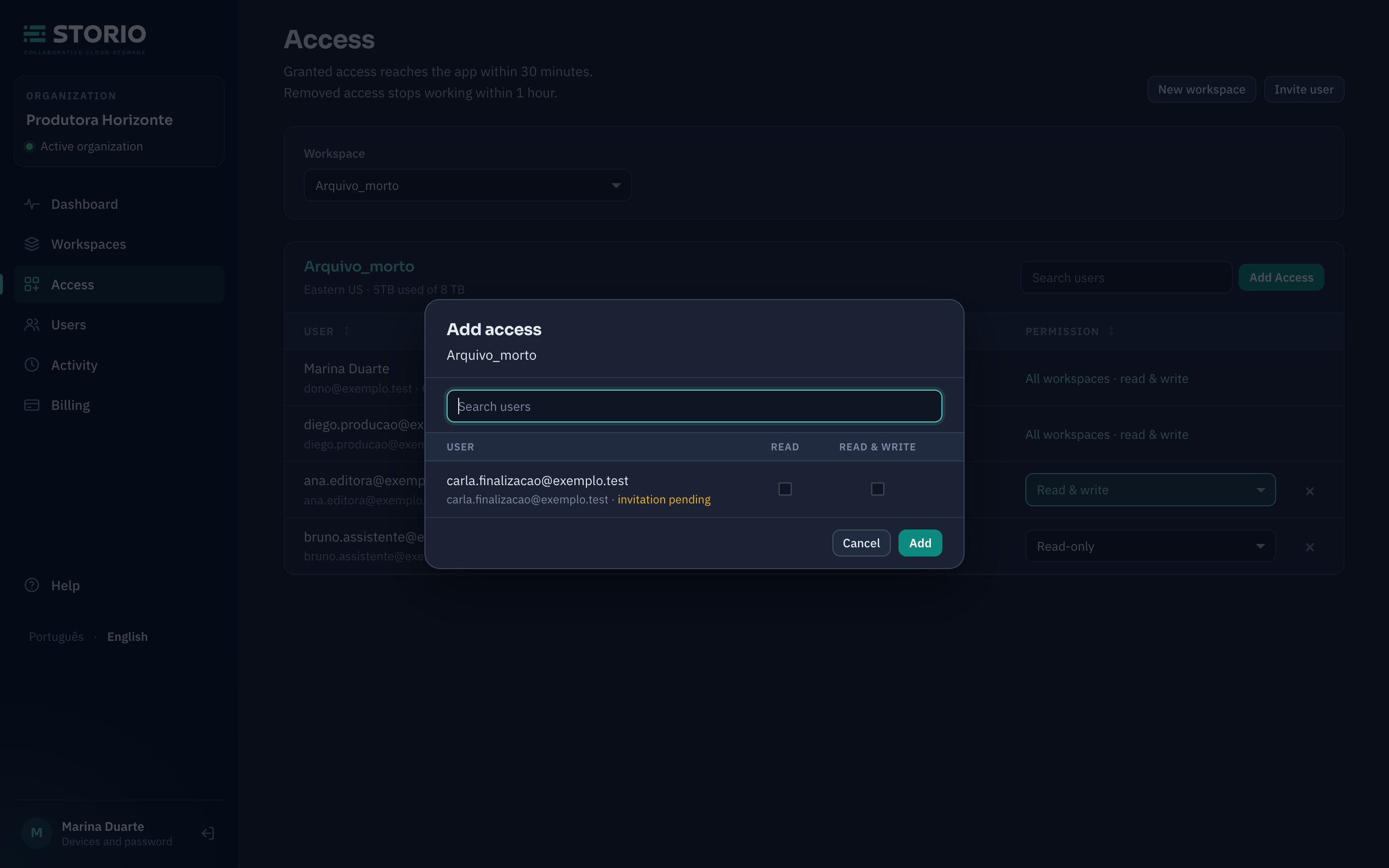
To give access to several people at once, click Add access and check Read or Read & write next to each one.
Granted access reaches the app within 30 minutes. Removed access stops working within 1 hour.
You can also change access on the workspace page and in Users, by clicking the number of workspaces next to a person.