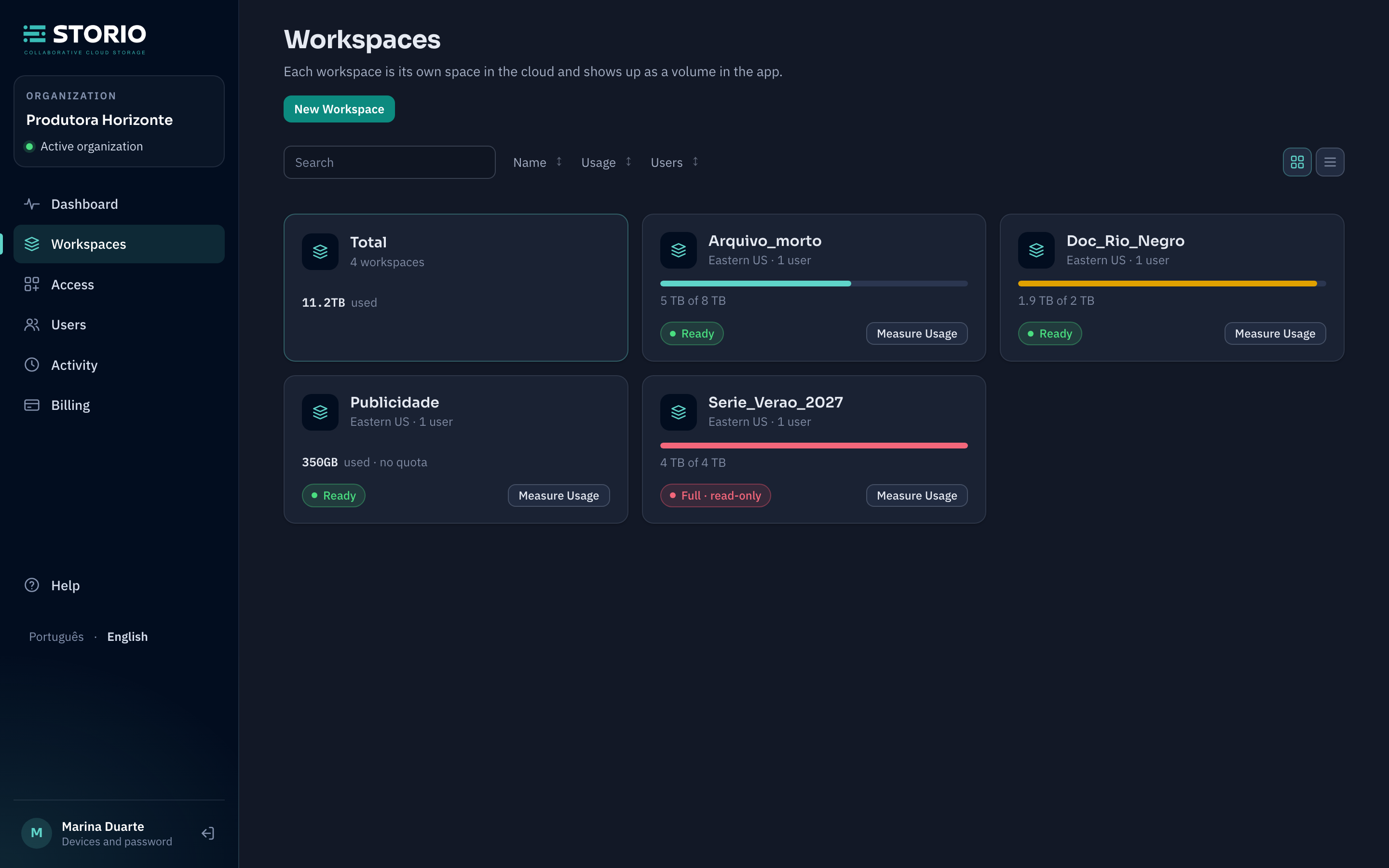
The list shows each workspace with its usage, region (or Cold Storage) and how many people use it. The Total card adds them all up. Use the search, sort by Name, Usage or Users, and choose between grid and list.
Create a workspace
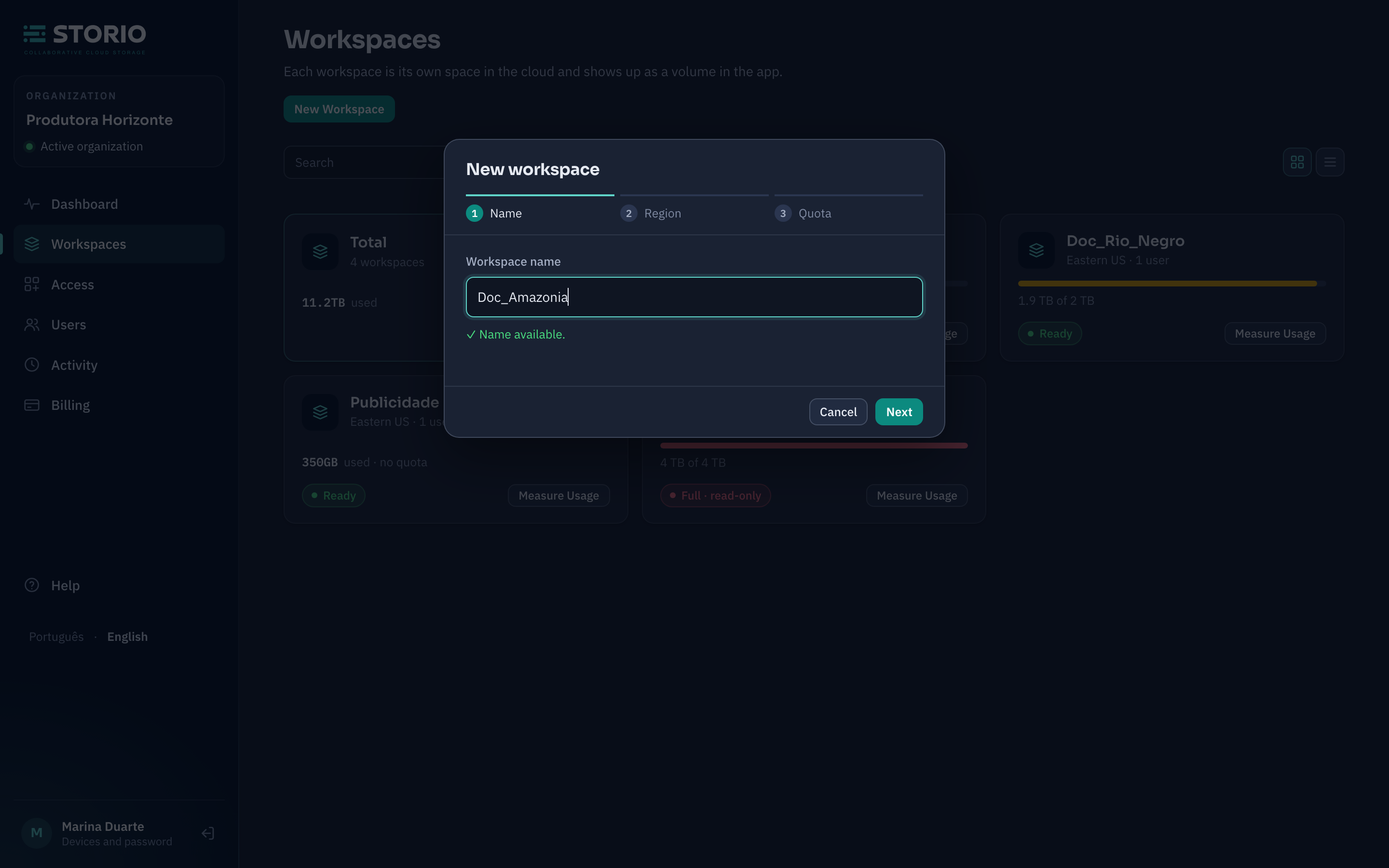
Click New Workspace. There are four steps:
- Name: letters without accents, numbers,
_and-. No spaces. The dashboard tells you right away if the name isn't valid or already exists. - Storage: the workspace type, which can't be changed later. Production Storage (US$ 4.90 per 100 GB): fast, for editing and day-to-day work. Cold Storage (US$ 1.90 per 100 GB): slower, for archive and finished material; active subscriptions only. Monthly downloads of up to 2× the stored space are included; anything above that is charged at the next renewal (see Pricing policy).
- Region (Production Storage only): where the files are stored. Choose the one closest to your team; for teams in Brazil, South America. The region can't be changed later. Cold Storage has no region choice.
- Quota (optional): a space limit for the workspace, from 100 GB to 50 TB. Once it's reached, the workspace becomes read-only.
Creation takes a few seconds. At the end, use Add access to give people access to the workspace.
During the free trial the organization has 1 workspace of 100 GB. After subscribing, you can create more.
Workspace page
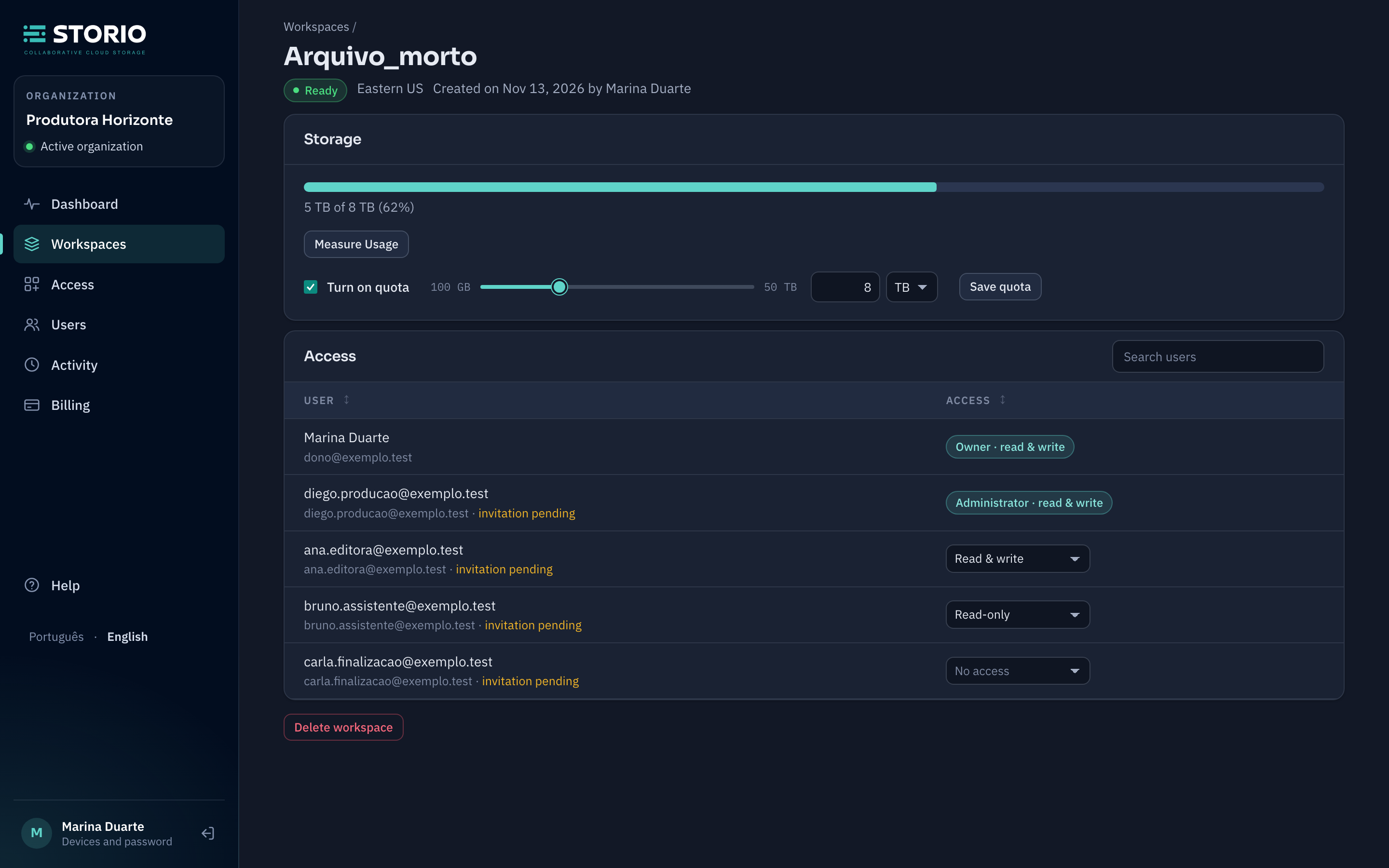
Click a workspace's name to see:
- Space: how much is used and the quota. To change the quota, adjust the value and click Save quota; uncheck the box to have no quota. The quota doesn't change the price, but it helps you control usage and avoid additional charges.
- Measure Usage: updates the usage right away. Storio also measures it on its own from time to time.
- Access: who uses the workspace and with which permission. You can change it right there.
- Delete workspace: deletes the workspace and all its files, permanently. To confirm, you have to type its name.