

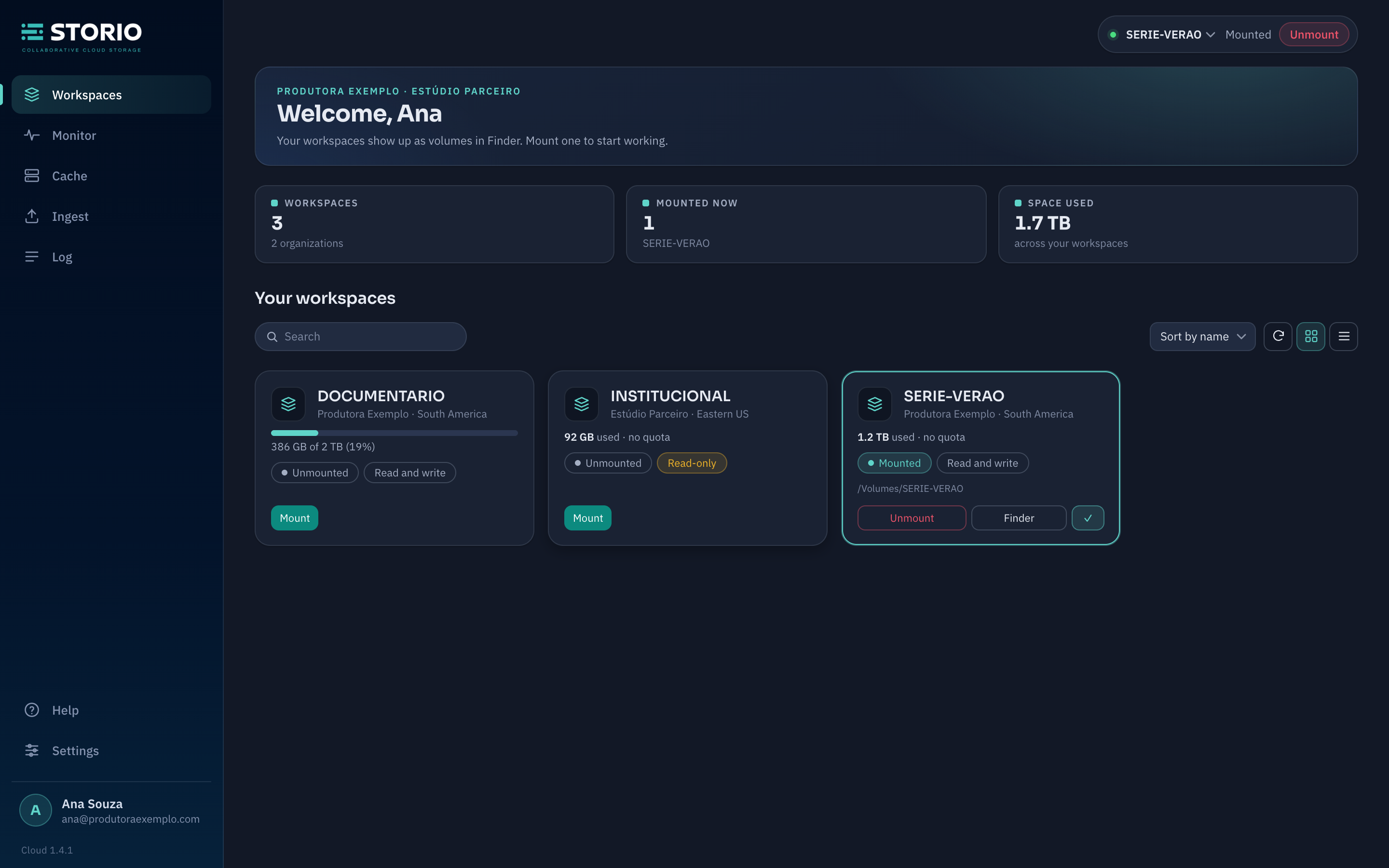
The Storio app is how you use your team's files day to day. Each workspace you have access to becomes a volume on the Mac, which shows up in Finder and in your editing software as if it were a drive plugged into the computer.
- Install: open the
.dmgand run Storio Cloud v1.4.3.pkg (see Install and uninstall). - Sign in: open Storio, click Sign in and finish signing in in your browser with your email and password (see Sign in and language).
- Mount: on the Workspaces page, click Mount on the workspace you're going to use.
- Use: the volume is at
/Volumes/<workspace name>. Click Show in Finder or open the files directly in Premiere, Media Composer or DaVinci Resolve.
- Workspace
- A space in the cloud for a project, client or department, created in the dashboard. On the Mac, it becomes a volume.
- Volume
- The
/Volumes/<name>folder that Storio mounts. You open, copy and save in it as on a drive. - Cache
- A copy of the files kept on the Mac's disk so they open fast, without waiting for the internet.
- Selected workspace
- The workspace shown in Monitor, Cache, Ingest and Log. With several mounted, you pick which one in the top bar.
Workspaces are created, and access is granted, by the organization's owner or an administrator in the dashboard. The app only shows the workspaces your account can use.