

The cache is the copy of your files that Storio keeps on the computer so they open and play without waiting for the internet. It's read constantly while you edit, so the disk it lives on directly affects performance.
- Disk type
- SSD (NVMe, ideally). A spinning hard drive can't keep up with heavy video.
- Connection
- An internal disk or an external one on USB-C (10 Gb/s USB 3.2 or faster, or Thunderbolt), plugged straight into the computer, with no hub.
- Space
- Free space for at least the size of the project you'll edit, with room to spare. The maximum cache size is set in Settings.
- Format
- APFS on Mac and NTFS on Windows. Nothing else: exFAT, FAT32, Mac OS Extended (HFS+), ReFS and network folders won't work.
Why each one matters
- SSD: the editor asks for pieces of many files at the same time. An SSD answers instantly; a spinning drive stalls the timeline even when everything is already downloaded.
- USB-C: old ports and cables (USB 2.0, 5 Gb/s USB-A) become the bottleneck. Use the computer's fastest port and the cable that came with the disk.
- Space for the whole project: when the cache is full, Storio removes what hasn't been used the longest to make room. With a cache smaller than the project, it keeps downloading and deleting the same media.
- APFS or NTFS: the Storio cache only works on these formats. If the folder is on another one, the app warns you and asks for another folder.
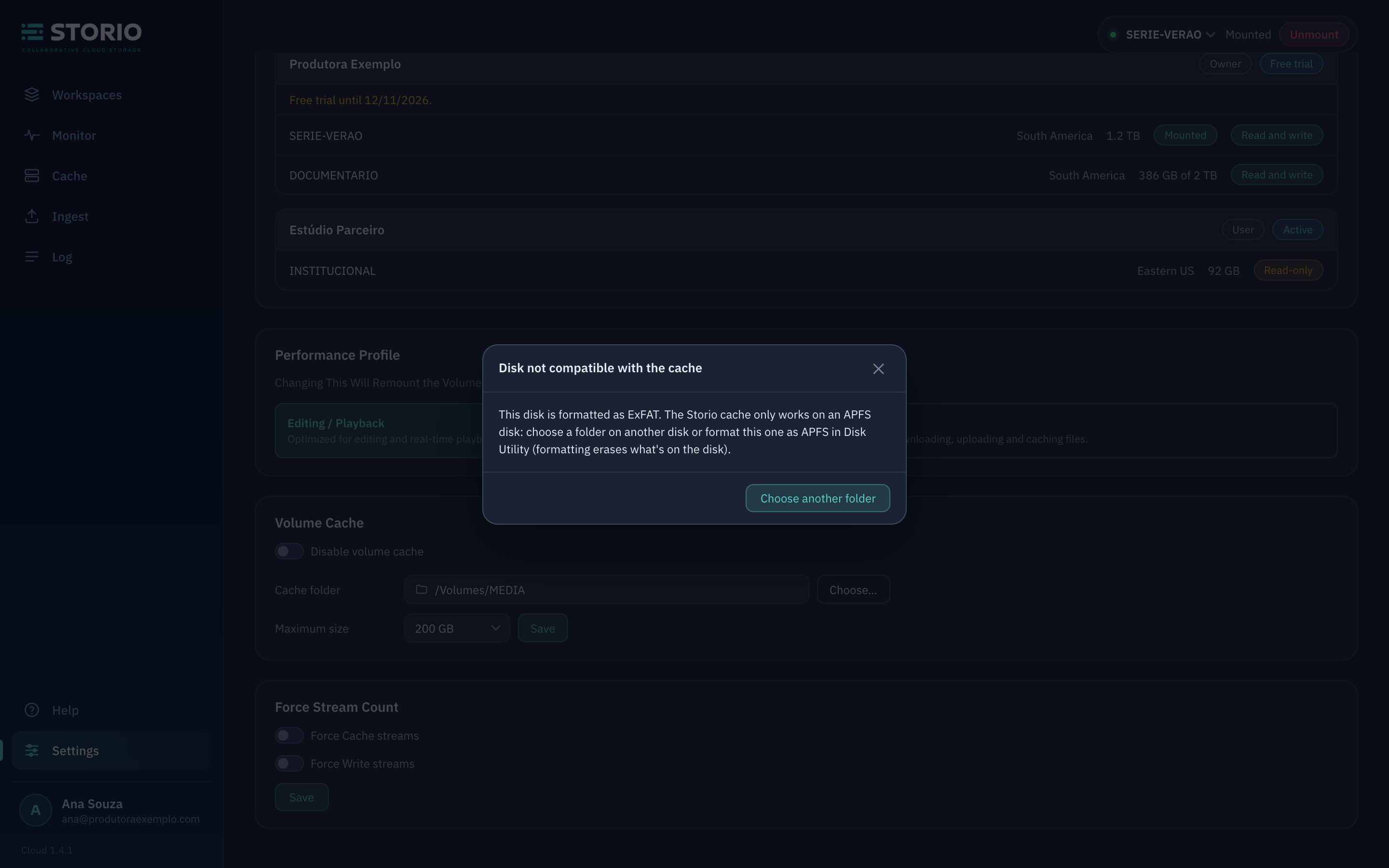
Where to set it
In the Storio app, under Settings › Volume Cache, choose the cache folder on the right disk and the maximum size. Step by step in the app manual for Mac and for Windows.
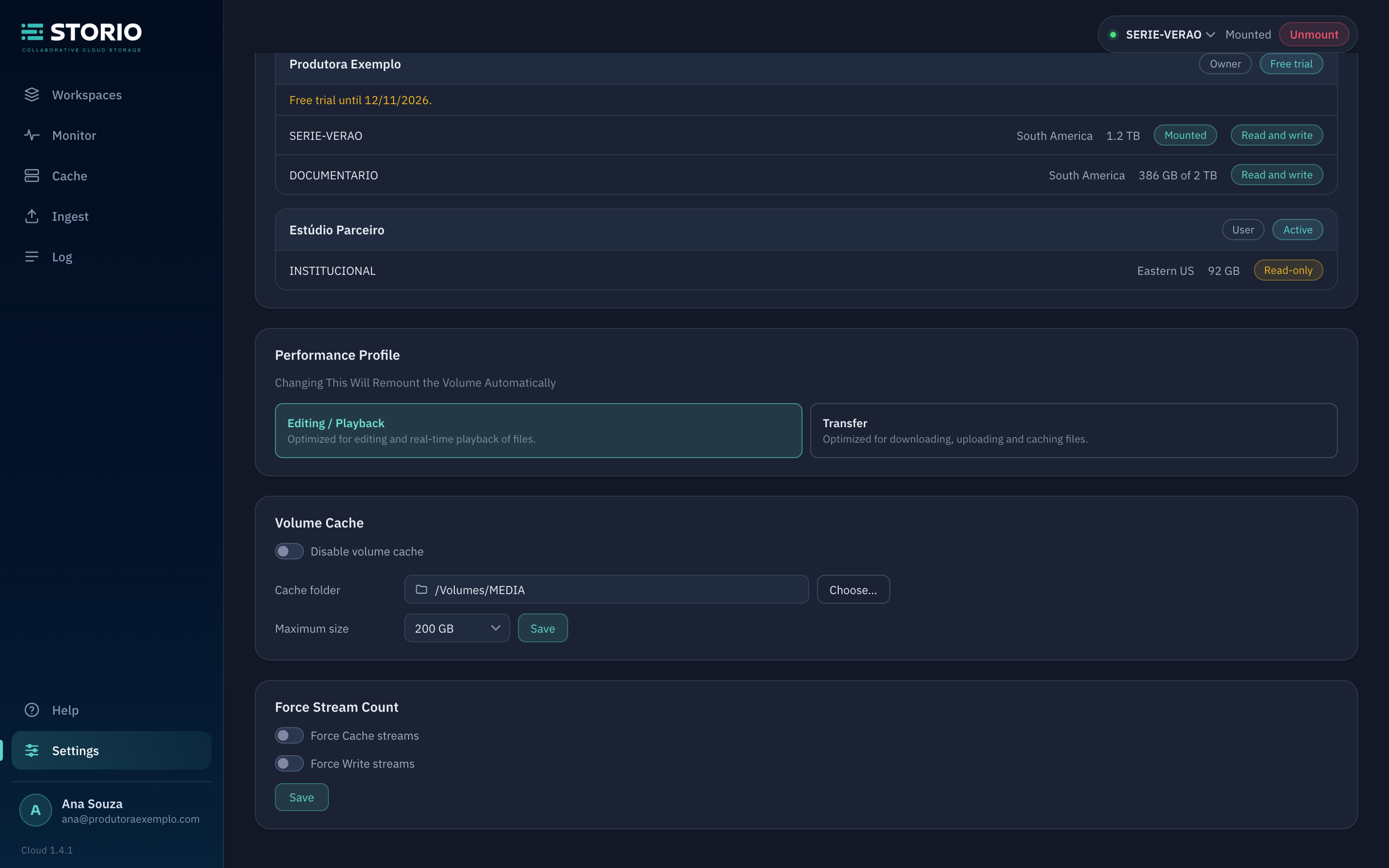
Formatting a disk as APFS or NTFS erases everything on it. Copy its contents somewhere else first.
To download a whole project before you start editing, use Project Login. To see and clear what's stored, the app's Cache page.